Best Free AI PDF Summarizers in 2026: 15+ Tools to Understand Documents Faster
PDF files are everywhere: research papers, business reports, manuals, contracts, textbooks, invoices, and technical documentation. Reading a long document from beginning to end can take considerable time, especially when you only need its main ideas, key findings, or specific answers.
Free AI PDF summarizers can help you understand documents faster. Depending on the tool, you may be able to upload a PDF, ask questions about its contents, extract important points, generate a structured summary, or identify information you need for a project.
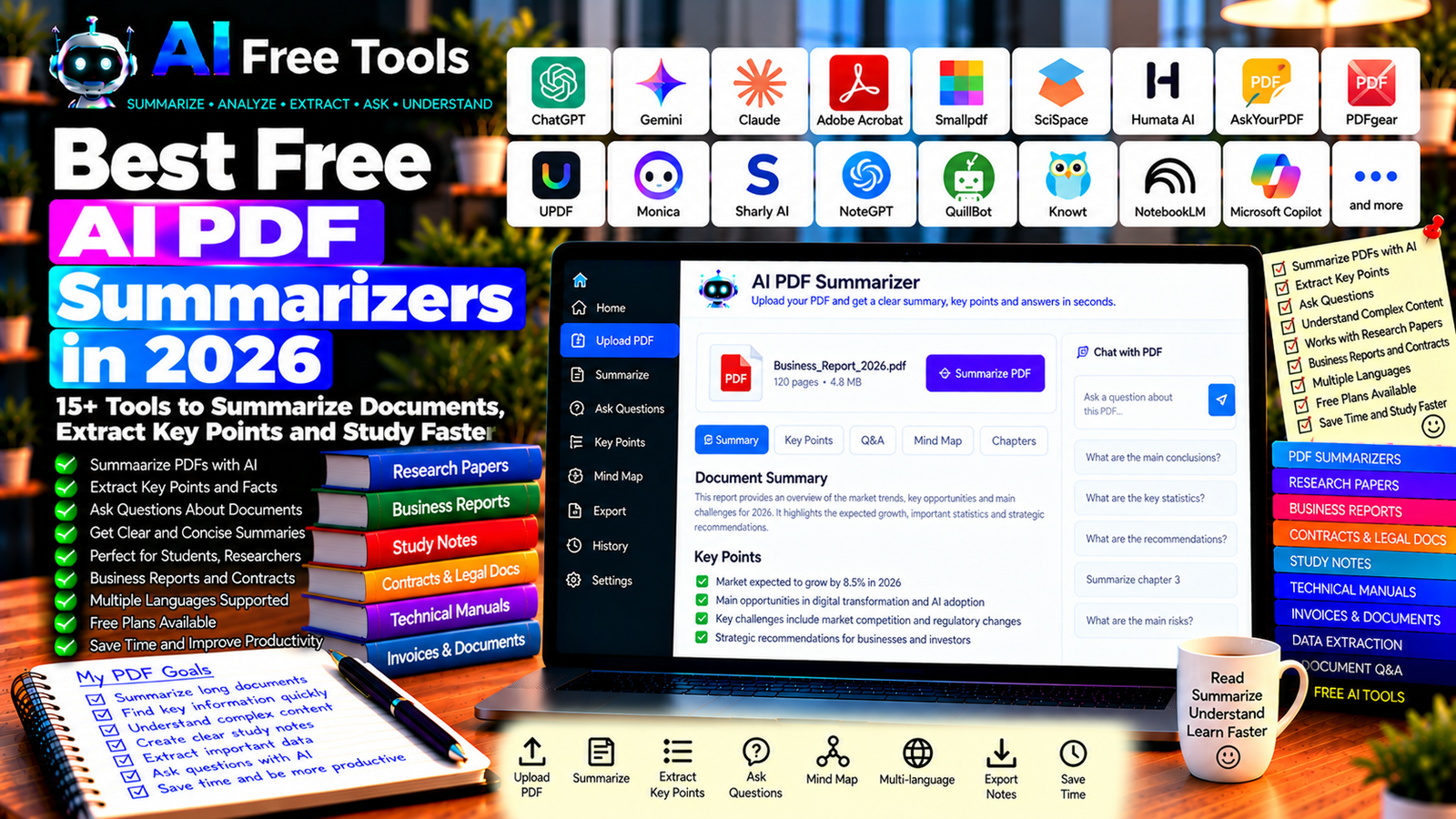
In this guide, we compare 17 AI assistants and document tools in 2026. You will learn which tools are worth exploring, how their free access may differ, and how to choose a solution for studying, research, or business work.
Important: Not every tool listed here is a dedicated PDF summarizer. Some are general AI assistants or document readers that can analyze PDFs when the relevant feature is available. Free plans may restrict file size, number of uploads, document length, or daily usage. Always verify important information against the original document.
Quick Comparison: Best Free AI PDF Summarizers
| Tool | Best For | Free Access |
|---|---|---|
| ChatGPT | Summarizing uploaded PDFs and asking questions | Free tier with limits |
| Google Gemini | Document analysis and summaries | Free tier with limits |
| Claude | Long-document analysis where supported | Free tier and usage limits may vary |
| Adobe Acrobat AI Assistant | Questions and summaries about PDFs | Availability and AI features vary by plan |
| Smallpdf AI PDF Summarizer | Quick PDF summaries | Free usage may be limited |
| SciSpace | Research papers and academic documents | Free features and usage limits vary |
| Humata AI | Asking questions about documents | Free access may be limited |
| AskYourPDF | Document questions and summaries | Free tier with restrictions |
| PDFgear | PDF reading and AI-assisted tasks | Features and availability may vary |
| UPDF AI | PDF summaries and document questions | Free AI usage may be limited |
| Monica | AI assistance for documents and web content | Free credits or usage limits may apply |
| Sharly AI | Summarizing and comparing documents | Free access and limits may vary |
| NoteGPT | Summaries and study notes | Free usage may be limited |
| QuillBot | Summaries and paraphrasing | Free features with restrictions |
| Knowt | Study notes and learning materials | Free features; AI usage may have limits |
| NotebookLM | Source-grounded research and document summaries | Free access with usage limits |
| Microsoft Copilot | Summarizing supported documents | Availability depends on account and plan |
1. ChatGPT — Best for Flexible PDF Summaries
ChatGPT can help analyze documents when file uploads are available to your account. You can ask for a concise summary, request explanations of difficult sections, extract key points, or organize a document into a structured report.
It is useful for research papers, business reports, technical guides, and study materials.
Best features:
- Summarize uploaded PDF files when supported.
- Extract key arguments and conclusions.
- Explain difficult passages in simpler language.
- Create bullet-point notes and study questions.
- Answer questions about the supplied document.
Free access: ChatGPT offers a free tier, but file uploads and analysis may have usage limits. Available features can change.
Best for: Students, professionals, researchers, and general document analysis.
Official website: https://chatgpt.com/
Example prompt:
“Summarize the uploaded PDF in clear English. Organize the response into: (1) a 150-word overview, (2) the five most important points, (3) key facts and figures, (4) conclusions, and (5) questions that remain unanswered. Use only information supported by the document. If a detail is unclear or missing, say so instead of guessing.”
2. Google Gemini — Best for Document Analysis
Google Gemini can assist with summarizing and analyzing supported documents when file uploads are available. You can ask it to explain a report, compare sections, identify themes, or create notes from a document.
Best features:
- Summarize supported uploaded files.
- Ask questions about a document.
- Extract important topics.
- Organize findings into lists or tables.
- Simplify technical explanations.
Free access: Gemini offers a free tier with usage limits. File size, supported formats, and available analysis features may vary by account and plan.
Best for: Students, office workers, researchers, and people who need to understand documents quickly.
Official website: https://gemini.google.com/
3. Claude — Best for Detailed Document Analysis
Claude can help analyze long texts and supported document uploads. It is useful when you need a careful explanation of a report, a comparison between sections, or a summary that preserves the structure of a complex argument.
Best features:
- Summarize supported PDF uploads.
- Explain complex ideas.
- Identify themes and arguments.
- Compare findings across supplied documents.
- Generate structured notes and questions.
Free access: Claude offers free access with usage limits that may change. Supported file types and upload capabilities depend on the current product.
Best for: Researchers, students, consultants, and professionals working with detailed documents.
Official website: https://claude.ai/
4. Adobe Acrobat AI Assistant — Best for Working with PDFs
Adobe Acrobat provides PDF reading, editing, and document management features. Its AI Assistant can help users ask questions about supported PDFs and understand their contents.
Best features to investigate:
- Generate document summaries.
- Ask questions about a PDF.
- Find information within supported documents.
- Review references or source passages where available.
- Work within the Acrobat document workflow.
Free access: AI Assistant availability and usage may depend on the product, subscription, region, and current offer. Some AI features require payment.
Best for: Professionals and users who already work with PDFs in Adobe Acrobat.
Official website: https://www.adobe.com/acrobat.html
5. Smallpdf AI PDF Summarizer — Best for Quick Summaries
Smallpdf offers online PDF tools, including AI-assisted document features. Its summarization workflow can be useful when you want to upload a supported PDF and quickly obtain an overview.
Best features to investigate:
- Summarize supported PDF documents.
- Extract key points.
- Work with other PDF utilities.
- Review document content in a browser.
- Check supported file types and export options.
Free access: Smallpdf has free tools, but AI summarization, document size, and usage may be limited. Check current conditions before processing multiple documents.
Best for: Students, office workers, and users who want a straightforward online PDF workflow.
Official website: https://smallpdf.com/
6. SciSpace — Best for Academic Research Papers
SciSpace focuses on academic research and tools that help users understand scientific papers. It can be useful when you need to review a paper’s research question, methodology, findings, or limitations.
Best features:
- Explore research paper summaries.
- Ask questions about supported papers.
- Clarify academic terminology.
- Identify methods and conclusions.
- Support literature review workflows.
Free access: SciSpace offers features with possible usage limits. Full access to some capabilities may require a paid plan.
Best for: University students, postgraduate researchers, academics, and readers of scientific literature.
Official website: https://scispace.com/
7. Humata AI — Best for Asking Questions About Documents
Humata AI is designed to help users interact with documents by asking questions and obtaining answers based on supplied files. It may be useful when you need specific information from a long report rather than a general summary.
Best features to investigate:
- Ask questions about uploaded documents.
- Generate document summaries.
- Find relevant information.
- Compare information across supported files.
- Review the evidence behind answers where available.
Free access: Free access and document limits may vary. Check current restrictions on pages, uploads, and questions.
Best for: Professionals, students, and researchers working with multiple documents.
Official website: https://www.humata.ai/
8. AskYourPDF — Best for Interactive PDF Questions
AskYourPDF is designed to let users interact with documents using natural-language questions. Rather than reading every page, you can ask about particular topics and request a summary of the relevant information.
Best features:
- Ask questions about supported PDF files.
- Summarize document contents.
- Extract key details.
- Explore information across documents where supported.
- Review answers against the original source.
Free access: AskYourPDF has offered free access with restrictions. Current limits and supported formats should be checked before use.
Best for: Students, researchers, consultants, and people reviewing lengthy reports.
Official website: https://askyourpdf.com/
9. PDFgear — Best for PDF Reading and Everyday Tasks
PDFgear provides PDF reading and document management tools, with AI-assisted features available in supported workflows. It may be useful if you want to read, organize, and work with PDFs in addition to summarizing them.
Best features to investigate:
- Read and manage PDF files.
- Explore AI-assisted document questions.
- Summarize supported content.
- Search and navigate documents.
- Check desktop and online capabilities.
Free access: PDFgear has offered free PDF utilities and AI-related features, but availability and limitations can change by version and platform.
Best for: Students, office workers, and users who need everyday PDF tools.
Official website: https://www.pdfgear.com/
10. UPDF AI — Best for PDF Summaries and Questions
UPDF combines PDF editing and document management with AI-assisted capabilities. It can help users summarize files, ask questions about content, and organize information from supported documents.
Best features to investigate:
- Summarize supported PDFs.
- Ask questions about document content.
- Translate or explain selected text where supported.
- Work with PDF editing features.
- Review export and file management options.
Free access: AI usage may be limited or require a paid plan. Check current terms, supported platforms, and included AI credits.
Best for: Students, researchers, and professionals who need both PDF management and AI assistance.
Official website: https://updf.com/
11. Monica — Best for General AI Document Assistance
Monica provides AI assistance across supported workflows, which may include document and web-content tasks. It can be useful if you want one interface for summarizing text, asking questions, and performing other writing tasks.
Best features to investigate:
- Summarize supported content.
- Ask questions about supplied information.
- Rewrite or explain text.
- Explore document-related features.
- Check supported browser and file workflows.
Free access: Monica may offer free credits or usage limits. Features can change, so verify the current plan before uploading large documents.
Best for: Users who want an AI assistant for several everyday productivity tasks.
Official website: https://monica.im/
12. Sharly AI — Best for Summarizing and Comparing Documents
Sharly AI has focused on interacting with documents and extracting useful information from them. Depending on current availability, it may help summarize content, compare documents, and answer questions.
Best features to investigate:
- Summarize supported documents.
- Ask questions about supplied files.
- Compare information across documents.
- Extract key points.
- Organize findings for research or business use.
Free access: Current availability, plan limits, and document features should be checked directly.
Best for: Researchers, consultants, students, and professionals who review multiple reports.
Official website: https://www.sharly.ai/
13. NoteGPT — Best for Summaries and Study Notes
NoteGPT offers AI-assisted learning and summarization tools. Depending on the available features, it can help turn documents or other supported content into summaries and study materials.
Best features to investigate:
- Summarize supported documents.
- Generate structured notes.
- Create study questions.
- Organize important concepts.
- Explore other learning workflows.
Free access: NoteGPT offers features with possible limits on credits, file size, or usage. Verify the current plan before relying on it for frequent document processing.
Best for: Students, self-learners, and people preparing revision notes.
Official website: https://notegpt.io/
14. QuillBot — Best for Summaries and Rewriting
QuillBot is a writing assistant that includes summarization and paraphrasing tools. It can be useful when you have extracted text from a PDF and want to condense it into key points or rewrite it in clearer language.
Best features:
- Summarize supported text.
- Extract main ideas.
- Paraphrase and rewrite passages.
- Improve clarity and readability.
- Support writing and study workflows.
Free access: QuillBot offers free tools with restrictions that may include text length, usage, or available modes.
Best for: Students, writers, and professionals who need concise notes from extracted document text.
Official website: https://quillbot.com/
15. Knowt — Best for Turning Learning Materials into Study Notes
Knowt is a learning platform that helps users create and review study materials. Depending on current capabilities, it may support AI-assisted transformations of supplied learning content into summaries, flashcards, or practice questions.
Best features to investigate:
- Organize learning materials.
- Create study notes.
- Generate flashcards or practice questions where supported.
- Review concepts for exams.
- Check supported upload and import formats.
Free access: Knowt offers free learning features, while some AI functions or usage may have restrictions.
Best for: Students, exam candidates, and independent learners.
Official website: https://knowt.com/
16. NotebookLM — Best for Source-Grounded Research
NotebookLM is Google’s research and note-taking assistant. It lets users work with supplied sources and ask questions grounded in those materials, including supported PDFs.
It is particularly useful when you want a summary based on a defined collection of documents rather than an answer based only on a general AI model.
Best features:
- Add supported PDF sources.
- Generate summaries based on supplied materials.
- Ask questions about your sources.
- Organize research notes.
- Explore study and audio-overview features where available.
Free access: NotebookLM offers access with usage limits that may vary. Source counts, file limits, and advanced features should be checked in the current product.
Best for: Students, researchers, educators, and professionals working with several source documents.
Official website: https://notebooklm.google.com/
17. Microsoft Copilot — Best for Supported Document Workflows
Microsoft Copilot can help summarize and analyze supported content. Depending on your account and the applications you use, it may be useful for document-related questions and extracting important points.
Best features to investigate:
- Summarize supported document content.
- Explain key concepts.
- Organize information into lists.
- Draft follow-up notes or questions.
- Explore eligible Microsoft 365 integrations.
Free access: Capabilities depend on account, file-upload support, product, and subscription. Some integrated features require an eligible paid plan.
Best for: Office workers, students, and organizations using Microsoft tools.
Official website: https://copilot.microsoft.com/
How to Choose the Best Free AI PDF Summarizer
The right tool depends on your document type and what you want to do with it. A student reading research papers has different needs from a manager reviewing business reports.
| Your Main Goal | Recommended Starting Tools |
|---|---|
| Summarize a general PDF | ChatGPT or Gemini |
| Analyze a long document | Claude, where supported |
| Read academic papers | SciSpace |
| Ask questions about a PDF | AskYourPDF or Humata AI |
| Work with PDF editing tools | Adobe Acrobat or PDFgear |
| Create study notes | NoteGPT or Knowt |
| Research across multiple sources | NotebookLM |
| Summarize extracted text | QuillBot |
| Work within Microsoft tools | Copilot, if eligible |
Best Free AI PDF Summarizers for Students
Students often need to understand lecture notes, textbooks, research papers, and course documents. A useful summarizer should preserve definitions, explain complex concepts, and help identify the main arguments without replacing the original material.
NotebookLM, SciSpace, ChatGPT, and Gemini are worth exploring for supported documents. QuillBot can also help summarize extracted text, while learning platforms such as Knowt may support revision workflows.
Use summaries as a starting point. Verify quotations, citations, equations, and factual claims against the original source before including them in assignments.
Best AI PDF Summarizers for Research
Researchers may need to compare papers, extract methodology details, identify limitations, and organize findings across multiple sources.
SciSpace is designed for academic research workflows, while NotebookLM can help analyze a collection of supplied sources. General AI assistants may also help, depending on document size and upload support.
For research work, preserve the original citation information. A summary can omit methodological details or misinterpret a finding, so verify any claim that matters to your conclusions.
Best AI PDF Summarizers for Business Reports
Business reports may contain financial figures, performance indicators, risks, and recommendations. A good workflow should make those details easier to find without changing their meaning.
You can use a document assistant to create an executive summary, extract key figures, list recommendations, and identify unanswered questions. Always check numerical values and conclusions against the original report, especially before making financial or operational decisions.
Avoid uploading confidential company documents to services that have not been approved for your organization’s data.
How to Summarize a PDF with AI in Five Steps
Step 1: Choose the Right Tool
Select a tool that supports your PDF format, document size, and intended task. If the file is scanned, you may need a tool with optical character recognition (OCR).
Step 2: Upload the Document Securely
Check the file-upload limits and privacy policy before uploading. Remove unnecessary personal or confidential information when possible.
Step 3: Specify the Summary You Need
A general prompt such as “summarize this PDF” may produce a broad overview. For better results, specify the length, audience, structure, and details you need.
Step 4: Ask Follow-Up Questions
Request explanations of difficult sections, definitions of technical terms, or a list of key findings. If you need exact figures or quotations, ask for page references where the tool supports them.
Step 5: Verify the Results
Compare the summary with the original PDF. Check important figures, names, quotations, citations, conclusions, and limitations. Never assume that a fluent answer is necessarily accurate.
Example AI Prompt for Summarizing a PDF
Copy and adapt this prompt:
“Analyze the supplied PDF and produce a structured summary for [TARGET AUDIENCE]. Include: (1) a short overview, (2) the main arguments, (3) important facts and figures, (4) conclusions, (5) limitations or uncertainties, and (6) five follow-up questions. Do not add information that is not supported by the document. Preserve important names and numerical values exactly. When possible, provide page references for key claims and clearly identify any information that is missing or unclear.”
Are Free AI PDF Summarizers Worth Using?
Yes. They can save time when you need to understand long documents, locate relevant information, or create a first draft of study notes.
For general summaries, start with ChatGPT or Gemini. For academic papers, explore SciSpace. For research based on a collection of sources, try NotebookLM. For interactive document questions, investigate Humata AI or AskYourPDF. If you also need to edit PDFs, compare Adobe Acrobat and PDFgear.
However, free plans can have limits, and no summarizer should replace checking the original document. The best tool is one that fits your workflow, respects your privacy requirements, and provides answers you can verify.
Are AI PDF Summarizers Safe for Confidential Documents?
Not every online document tool is suitable for sensitive files. PDFs may contain personal data, medical information, contracts, financial statements, internal business reports, or confidential research.
Before uploading a document:
- Review the provider’s privacy and data-retention policies.
- Check whether uploaded content may be used to improve AI systems.
- Use an organization-approved tool for confidential information.
- Remove sensitive details that are not needed for the task.
- Review sharing permissions and document access settings.
- Delete files when appropriate and permitted by your retention policy.
If the document contains highly sensitive information, consider whether you can summarize it locally or use an approved enterprise solution instead.
Frequently Asked Questions
What is the best free AI PDF summarizer in 2026?
The best option depends on your task. ChatGPT and Gemini are flexible for general document questions, SciSpace is useful for academic papers, NotebookLM supports source-grounded research, and tools such as Smallpdf or AskYourPDF offer dedicated PDF workflows. Check current free-plan limits before choosing.
Can I summarize a PDF for free with AI?
Yes. Several AI assistants and PDF services offer free access, although they may limit file size, upload counts, page counts, or AI usage. Check the current terms before processing large documents.
Can AI summarize a scanned PDF?
It depends on whether the tool can recognize text in scanned pages. A scanned PDF may require OCR before it can be summarized accurately. Check whether the tool supports image-based PDFs and verify the extracted text.
Can AI summarize a very long PDF?
Some tools support long documents, but limits vary by product, plan, and file size. If a document exceeds the limit, you may need to split it into sections and summarize each part before creating an overall summary.
Are AI PDF summaries accurate?
They can be useful, but they may omit context, misinterpret technical language, or generate incorrect details. Verify important claims, quotations, page references, and figures against the original PDF.
Can AI answer questions about a PDF?
Yes. Many document assistants allow you to ask questions about supported files. For reliable results, ask specific questions and request page references or supporting passages when available.
Can I use an AI PDF summarizer for academic research?
Yes, as a support tool for understanding papers and organizing notes. Follow your institution’s academic integrity rules, preserve citations, and verify claims in the original sources. Do not cite an AI summary as though it were the original research.
Final Verdict
The best free AI PDF summarizers in 2026 can help you understand documents faster, extract important information, and organize your research or work.
For general document analysis, explore ChatGPT or Google Gemini. For academic research, consider SciSpace. For source-grounded research, try NotebookLM. For PDF-specific workflows, investigate Smallpdf, AskYourPDF, or PDFgear.
Always check the current free-plan limits, protect confidential information, and verify important details against the original document. AI is most useful when it makes a document easier to understand without replacing careful reading and judgment.
Explore more guides on AI Free Tools:
Leave a Reply