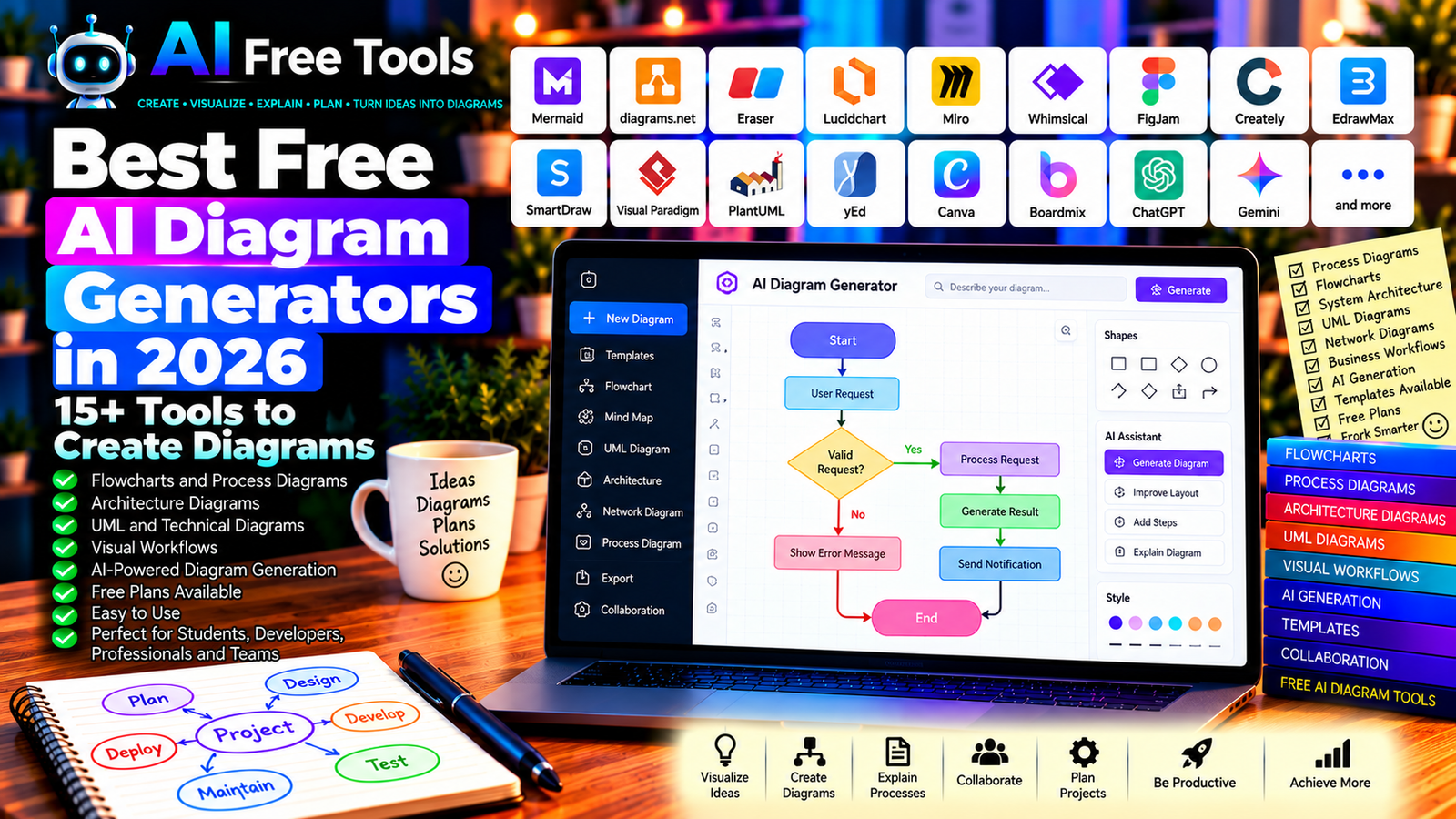
Best Free AI Diagram Generators in 2026: 15+ Tools to Create Diagrams
Free AI diagram generators can help you turn complicated ideas, written instructions, and business processes into clear visual diagrams. Instead of manually drawing every shape and connector, you can use AI-assisted tools to draft flowcharts, explain workflows, map systems, and organize information.
Diagrams are useful for software development, project planning, education, business operations, presentations, and technical documentation. The right tool can make complex information easier to understand and help teams communicate more effectively.
In this guide, we compare 17 diagramming platforms and AI-assisted visual tools in 2026. You will learn what each tool does, which free options are worth exploring, and how to choose a solution for your projects.
Important: Some tools can generate diagrams directly from text, while others provide traditional diagram editors or AI-assisted features. A free editor does not necessarily include free AI generation. Export formats, usage limits, and available AI features can change, so check each provider’s current terms before signing up.
Quick Comparison: Best Free AI Diagram Generators
| Tool | Best For | Free Access |
|---|---|---|
| Mermaid | Diagrams from text-based syntax | Free and open source |
| diagrams.net | General-purpose diagramming | Free |
| Eraser | Technical and software diagrams | Free plan with restrictions |
| Lucidchart | Business diagrams and workflows | Free access with limits |
| Miro | Collaborative visual planning | Free plan with limits |
| Whimsical | Flowcharts and visual documentation | Free plan with restrictions |
| FigJam | Team brainstorming and diagrams | Free access with limits |
| Creately | Visual workspaces and diagrams | Free access with restrictions |
| EdrawMax | Technical and professional diagrams | Free features with restrictions |
| SmartDraw | Business and technical diagrams | Trial or plan restrictions may apply |
| Visual Paradigm Online | UML and technical diagrams | Free options vary by product |
| PlantUML | UML diagrams from text | Free and open source |
| yEd Graph Editor | Structured graph diagrams | Free desktop application |
| Canva | Presentation-ready diagrams | Free plan; some features are paid |
| Boardmix | Online whiteboards and diagrams | Free plan with limits |
| ChatGPT | Generating diagram structures and code | Free tier with limits |
| Google Gemini | Planning diagrams from descriptions | Free tier with limits |
1. Mermaid — Best for Creating Diagrams from Text
Mermaid is an open-source tool that creates diagrams from a text-based syntax. Instead of dragging shapes around a canvas, you describe the relationships between steps, and a compatible Mermaid renderer converts the text into a diagram.
You can use an AI assistant to draft Mermaid code from a written description, then review the code and render it using a supported editor.
Best features:
- Create flowcharts from text.
- Build sequence and class diagrams.
- Visualize project timelines.
- Represent relationships between components.
- Store diagrams as editable text.
Free access: Mermaid is free and open source. You may need a compatible editor or renderer to preview and export diagrams conveniently.
Best for: Developers, technical writers, students, and people who prefer text-based workflows.
Official website: https://mermaid.js.org/
Example prompt for an AI assistant:
“Create a Mermaid flowchart for an online order process. Include order submission, payment verification, stock availability, shipping, and order confirmation. Show the decision paths for failed payment and unavailable stock. Return valid Mermaid code only.”
2. diagrams.net — Best Free General-Purpose Diagram Editor
diagrams.net, also known as draw.io, is a diagramming application for creating flowcharts, network diagrams, organizational charts, and other visual structures.
It is not primarily an AI diagram generator, but you can use an AI assistant to prepare the diagram structure and then build or refine it in the editor.
Best features:
- Create flowcharts and process diagrams.
- Draw network and architecture diagrams.
- Build organizational charts.
- Arrange shapes and connectors.
- Save or export using supported file formats.
Free access: The core diagrams.net editor is free. Available storage and integration options depend on how you use the application.
Best for: Students, small businesses, IT professionals, teachers, and anyone who needs a capable free diagram editor.
Official website: https://www.diagrams.net/
3. Eraser — Best for Technical and Software Diagrams
Eraser is designed for technical documentation and collaborative engineering workflows. It helps teams create diagrams and document software systems, with AI-assisted features available depending on the current plan.
It is especially relevant when a diagram needs to explain how applications, databases, APIs, or infrastructure components interact.
Best features to investigate:
- Create technical and architecture diagrams.
- Document software systems.
- Collaborate on engineering documentation.
- Explore AI-assisted diagram creation.
- Organize diagrams alongside technical notes.
Free access: Eraser offers free access with restrictions. Confirm the current AI allowance, workspace limits, and export options before relying on it for regular use.
Best for: Software developers, engineering teams, architects, and technical writers.
Official website: https://www.eraser.io/
4. Lucidchart — Best for Business Processes and Workflows
Lucidchart is a diagramming platform for flowcharts, process maps, organizational charts, and technical visuals. It is useful when you need to explain a business process or document how a system works.
Some AI-assisted capabilities may be available depending on the current plan and product.
Best features:
- Create process diagrams and flowcharts.
- Map business workflows.
- Build organizational charts.
- Collaborate on shared diagrams.
- Explore available AI-assisted diagramming features.
Free access: Lucidchart offers free access with limits on documents, shapes, and features. Advanced collaboration or AI functionality may require payment.
Best for: Business analysts, project managers, consultants, and technical teams.
Official website: https://www.lucidchart.com/
5. Miro — Best for Collaborative Visual Planning
Miro is an online visual workspace for brainstorming, flowcharts, workshops, and collaborative planning. Its flexible canvas allows teams to combine notes, diagrams, and supporting information in one place.
AI capabilities may help generate or organize visual content, depending on current availability and the plan.
Best features:
- Build flowcharts and process maps.
- Collaborate on a shared canvas.
- Organize ideas and workflow steps.
- Use templates for planning.
- Explore eligible AI-assisted visual features.
Free access: Miro offers a free plan with restrictions. Check the current limits on boards, AI usage, and collaboration features.
Best for: Remote teams, consultants, product managers, teachers, and workshop facilitators.
Official website: https://miro.com/
6. Whimsical — Best for Simple Flowcharts
Whimsical combines flowcharts, mind maps, wireframes, and visual documentation in a relatively simple workspace. It is useful when you want to create a clear diagram quickly without a complicated setup.
Best features:
- Create flowcharts and mind maps.
- Connect steps and decisions.
- Document simple workflows.
- Collaborate on visual documents.
- Explore AI-assisted diagram creation where available.
Free access: Whimsical offers free access with restrictions. Current AI credits, document limits, and collaboration options may vary.
Best for: Designers, writers, product teams, students, and small businesses.
Official website: https://whimsical.com/
7. FigJam — Best for Team Brainstorming Diagrams
FigJam is a collaborative online whiteboard for brainstorming, workshops, and visual planning. It can help teams map processes, organize ideas, and explain relationships between different parts of a project.
Best features:
- Build visual workflows.
- Organize ideas with notes and shapes.
- Connect related concepts.
- Collaborate during workshops.
- Explore available AI-assisted tools.
Free access: FigJam offers free access with restrictions. Some team, administration, and advanced features may depend on the current plan.
Best for: Designers, product teams, educators, and remote collaborators.
Official website: https://www.figma.com/figjam/
8. Creately — Best for Visual Workspaces and Process Maps
Creately provides a visual workspace for diagrams, process documentation, planning, and collaboration. It can help teams represent workflows and organize information in a shared environment.
Best features to investigate:
- Create flowcharts and process maps.
- Build organizational diagrams.
- Use templates for business workflows.
- Collaborate on shared workspaces.
- Explore available AI-assisted diagram features.
Free access: Creately offers free access with restrictions. Check current limits on items, collaboration, AI usage, and exports.
Best for: Business analysts, project teams, educators, and operations managers.
Official website: https://creately.com/
9. EdrawMax — Best for Professional and Technical Diagrams
EdrawMax is a diagramming application that supports many diagram types, including flowcharts, organizational charts, network diagrams, and technical illustrations.
It can be useful when you need a specialized template or a more detailed diagram than a basic whiteboard can provide.
Best features:
- Create professional diagrams.
- Use templates and symbols.
- Build network and organizational charts.
- Draw process workflows.
- Explore current AI-assisted diagram features.
Free access: EdrawMax offers free features with restrictions. Some export options, templates, or advanced capabilities may require payment.
Best for: Engineers, educators, business users, students, and technical professionals.
Official website: https://www.edrawsoft.com/edrawmax/
10. SmartDraw — Best for Business and Technical Templates
SmartDraw provides templates and tools for creating flowcharts, organizational charts, floor plans, and other structured diagrams.
It can be useful when you need a predefined layout rather than starting from a blank canvas.
Best features:
- Create flowcharts and process diagrams.
- Build organizational charts.
- Use specialized diagram templates.
- Arrange shapes and connectors.
- Export or integrate diagrams through supported options.
Free access: SmartDraw is primarily a commercial product, and trial or access conditions can change. Verify current pricing and availability before planning a long-term workflow.
Best for: Businesses, consultants, engineers, and operations teams.
Official website: https://www.smartdraw.com/
11. Visual Paradigm Online — Best for UML and Technical Diagrams
Visual Paradigm Online offers diagramming tools for software design, business processes, and technical documentation. Depending on the selected product and plan, it can support UML diagrams and other structured visuals.
Best features:
- Create UML diagrams.
- Model software components and relationships.
- Build flowcharts and process diagrams.
- Use templates for technical documentation.
- Explore eligible AI-assisted features.
Free access: Free options vary by product and feature. Check the current limits on diagram types, exports, and commercial use.
Best for: Software developers, system analysts, students, and technical teams.
Official website: https://online.visual-paradigm.com/
12. PlantUML — Best for UML Diagrams from Text
PlantUML is an open-source tool for creating diagrams from text descriptions. It is particularly useful for software architecture, sequence diagrams, class diagrams, and other technical documentation.
An AI assistant can help draft the PlantUML source, but the resulting diagram should be checked for syntax and technical accuracy.
Best features:
- Generate UML diagrams from text.
- Document software architecture.
- Create sequence and class diagrams.
- Store diagrams as editable source.
- Integrate with compatible development tools.
Free access: PlantUML is free and open source. Rendering and integrations depend on the environment you choose.
Best for: Developers, software architects, technical writers, and engineering students.
Official website: https://plantuml.com/
13. yEd Graph Editor — Best for Structured Graphs
yEd Graph Editor is a diagramming application for creating and arranging graph-based diagrams. It can help visualize relationships, organizational structures, networks, and other connected information.
It is not primarily a prompt-based AI generator, but you can use AI to prepare the structure before importing or recreating it in a supported format.
Best features:
- Create graph-based diagrams.
- Visualize relationships and networks.
- Use automatic layout algorithms.
- Arrange complex structures.
- Export diagrams using supported formats.
Free access: yEd Graph Editor is available free of charge. Check the official licensing terms for your intended use.
Best for: Researchers, analysts, students, and users who need structured relationship diagrams.
Official website: https://www.yworks.com/products/yed
14. Canva — Best for Presentation-Ready Diagrams
Canva is a visual design platform that can help you create diagrams, infographics, process illustrations, and presentation graphics.
It is particularly useful when a diagram needs to look polished for a report, website, presentation, or social media post.
Best features:
- Use diagram and infographic templates.
- Customize shapes, colors, and typography.
- Add icons and illustrations.
- Create presentation-ready visuals.
- Explore eligible AI design features.
Free access: Canva offers a free plan. Some templates, premium assets, and AI features may require payment or have usage limits.
Best for: Marketers, teachers, students, content creators, and small businesses.
Official website: https://www.canva.com/
15. Boardmix — Best for Online Whiteboards and Diagrams
Boardmix is an online visual collaboration platform for brainstorming, flowcharts, mind maps, and related diagrams.
It can help users organize visual information in one shared workspace.
Best features to investigate:
- Create flowcharts and diagrams.
- Use visual templates.
- Collaborate on shared boards.
- Organize project workflows.
- Explore AI-assisted generation where available.
Free access: Boardmix offers free access with restrictions. Check current AI credits, board limits, and export options.
Best for: Remote teams, educators, project managers, and people who need a flexible visual workspace.
Official website: https://boardmix.com/
16. ChatGPT — Best for Generating Diagram Structures
ChatGPT can help you design the logic of a diagram before you create it in a dedicated tool. You can describe a business process, software system, or decision workflow and ask for structured steps or compatible diagram code.
For example, it can draft Mermaid syntax that you can render in a compatible editor.
Best features:
- Turn written processes into diagram outlines.
- Identify decision points and branches.
- Draft Mermaid or PlantUML code.
- Explain complex systems in simpler terms.
- Help refine labels and workflow logic.
Free access: ChatGPT offers a free tier with usage and feature limits.
Best for: Students, developers, business owners, consultants, and technical writers.
Official website: https://chatgpt.com/
Example prompt:
“Create a flowchart for a customer support process. Include customer request, request classification, self-service resolution, escalation to an agent, issue resolution, and customer feedback. Include decision branches for resolved and unresolved requests. Return valid Mermaid flowchart code and briefly explain the workflow.”
17. Google Gemini — Best for Planning Diagrams from Descriptions
Google Gemini can help structure a process, identify steps, and organize a complex description into a diagram-ready outline. You can then transfer the outline to Mermaid, diagrams.net, Lucidchart, or another visual editor.
Best features:
- Organize processes into steps.
- Identify decisions and dependencies.
- Draft diagram outlines.
- Explain workflows and system relationships.
- Support eligible Google productivity workflows.
Free access: Gemini offers a free tier with usage limits. Advanced capabilities and integrations depend on the current account and plan.
Best for: Students, business analysts, developers, teachers, and professionals.
Official website: https://gemini.google.com/
How to Choose the Best Free AI Diagram Generator
The best tool depends on the diagram type, your technical skills, and whether you need AI generation or a traditional editor.
| Your Main Goal | Recommended Starting Tools |
|---|---|
| Generate diagrams from text | Mermaid with an AI assistant |
| Create general-purpose diagrams for free | diagrams.net |
| Document software architecture | Eraser or PlantUML |
| Create UML diagrams | PlantUML or Visual Paradigm Online |
| Map business processes | Lucidchart or Creately |
| Collaborate visually with a team | Miro or FigJam |
| Create attractive diagrams for presentations | Canva |
| Generate a diagram outline from a prompt | ChatGPT or Gemini |
| Visualize complex graph relationships | yEd Graph Editor |
Best Free AI Diagram Generators for Students
Students can use diagrams to summarize lessons, explain scientific processes, map historical events, and organize research.
Mermaid, diagrams.net, and Canva are useful starting points. An AI assistant can help organize a topic into steps or categories before you build the diagram.
Check the facts and relationships carefully, particularly when diagrams represent scientific, mathematical, or historical information.
Best AI Diagram Generators for Businesses
Businesses can use diagrams to explain customer journeys, document internal processes, plan operations, and train employees.
Lucidchart, Miro, Whimsical, and Creately are worth comparing for workflow documentation and collaboration. Canva can help create polished graphics for reports, while Mermaid is useful when a diagram needs to be maintained as text alongside technical documentation.
Choose a tool that supports your team’s collaboration, export, and privacy requirements.
Best AI Diagram Generators for Developers
Developers often need diagrams for software architecture, APIs, database relationships, and system behavior.
Mermaid and PlantUML are useful when you want diagrams that can be stored alongside code and updated as text. Eraser and Visual Paradigm Online may be worth exploring for more visual workflows.
Always review generated diagrams against the actual system. AI can invent components, omit dependencies, or produce invalid syntax.
How to Create a Diagram with AI in Five Steps
Step 1: Define the Purpose
Decide what the diagram must explain. A process flowchart, software architecture diagram, and organizational chart have different requirements.
Step 2: Describe the Components
List the main steps, people, systems, decisions, or objects that should appear in the diagram.
Step 3: Generate a Draft
Ask an AI assistant to organize the information into a structured outline or a compatible diagram language, such as Mermaid.
Step 4: Render and Edit the Diagram
Use a compatible editor to display the diagram. Correct labels, add missing connections, and adjust the layout for readability.
Step 5: Verify the Logic
Confirm that the steps, relationships, and decision paths accurately represent the real process. Export the final diagram using a suitable format.
Example AI Prompt for a Business Process Diagram
Copy and adapt this prompt:
“Create a process flowchart for [DESCRIBE YOUR PROCESS]. Include the start, main activities, decision points, alternative paths, and end states. Use short labels and avoid unnecessary steps. Identify any missing information before assuming how the process works. Return valid Mermaid flowchart code and a short explanation of the decisions.”
Are Free AI Diagram Generators Worth Using?
Yes. They can reduce the time needed to plan diagrams and help transform written explanations into clearer visuals.
For general-purpose diagramming, diagrams.net is a strong free starting point. For text-based diagrams, Mermaid and PlantUML are useful. For collaborative work, Miro and FigJam are worth considering, while Canva can help create presentation-ready graphics.
However, AI-generated diagrams are only drafts until you verify them. Check the direction of arrows, labels, decision branches, technical components, and relationships before publishing or using them in business documentation.
Are AI Diagram Generators Safe for Business Information?
Diagrams may contain confidential workflows, internal systems, customer journeys, network architecture, or security-sensitive information.
Before uploading descriptions or documents, review the provider’s privacy policy and data-handling terms. Avoid sharing sensitive architecture or confidential business processes with an unapproved service.
For technical diagrams, verify that the final version does not accidentally expose credentials, internal addresses, or other restricted information.
Frequently Asked Questions
What is the best free AI diagram generator in 2026?
The best option depends on the task. Mermaid is useful for text-based diagrams, diagrams.net is a strong free general-purpose editor, and tools such as Eraser, Miro, and Whimsical offer different visual and collaboration workflows. Check current AI and export limits.
Can AI create a flowchart from text?
Yes. Some platforms offer direct text-to-diagram generation. Alternatively, an AI assistant can create Mermaid code or a structured list of steps that you can render in a compatible diagram editor.
Can I generate diagrams for free?
Yes. Open-source tools such as Mermaid and PlantUML are free, and diagrams.net offers a free diagram editor. Dedicated AI generation services may limit free usage or require payment for advanced features.
Which AI diagram tool is best for software architecture?
Mermaid, PlantUML, and Eraser are useful starting points. The best choice depends on whether you prefer text-based diagrams, a visual editor, or a collaborative technical documentation workspace.
Can AI generate UML diagrams?
AI assistants can draft UML source or help organize the classes, actors, and relationships. You should render the diagram with a compatible tool and verify that the model accurately represents the system.
Can I export AI-generated diagrams to PDF or PNG?
Some tools support PDF, PNG, SVG, or other formats, while others restrict exports to specific plans. Check the current export options before choosing a platform for professional work.
Do I need coding skills to create diagrams with AI?
No. Visual tools such as diagrams.net, Miro, Canva, and Lucidchart can be used without coding. Text-based tools such as Mermaid and PlantUML require their own syntax, but an AI assistant can help draft it.
Final Verdict
The best free AI diagram generators in 2026 can help you explain processes, document systems, and organize complex information more efficiently.
For general diagramming, start with diagrams.net. For diagrams from text, explore Mermaid or PlantUML. For software architecture, consider Eraser. For collaborative workflows, compare Miro, Whimsical, and FigJam. For polished visual presentations, Canva is a useful option.
Choose the tool that fits your workflow, verify its current free-plan restrictions, and review every generated diagram before relying on it.
Explore more guides on AI Free Tools:
Leave a Reply