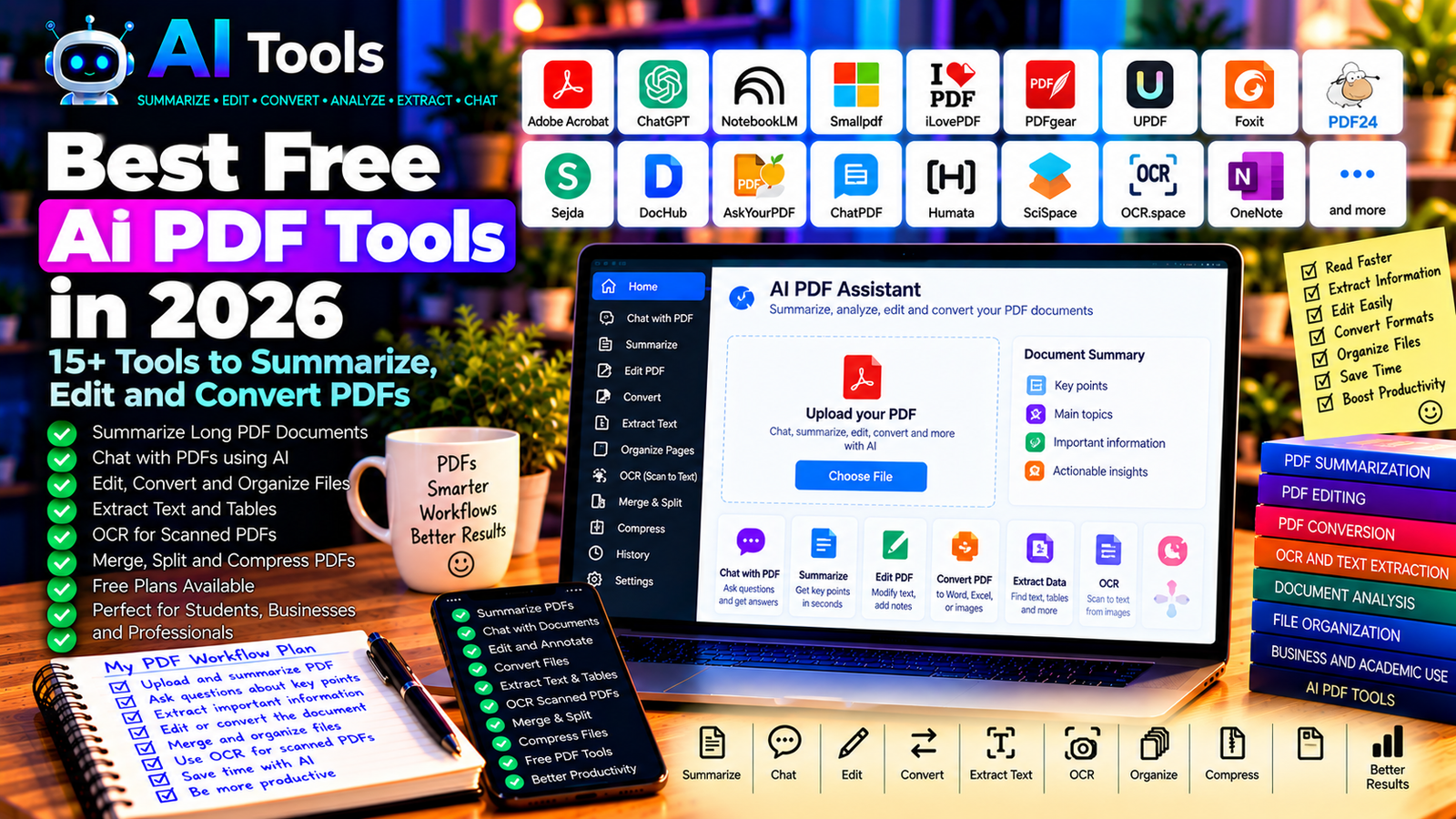
Best Free AI PDF Tools in 2026: 15+ Tools to Summarize, Edit and Convert PDFs
PDF files are everywhere. Students use them for textbooks and research papers, professionals receive contracts and reports as PDFs, and businesses rely on them for quotations, invoices, manuals, and other documents.
Working with these files can take time, especially when you need to summarize a long report, find a specific answer, extract information, or convert a document into another format.
Free AI PDF tools can make these tasks easier. Some let you ask questions about a document, while others help summarize information, recognize text, organize pages, or convert files.
In this guide, we compare 17 AI-powered PDF assistants and related document tools in 2026. We explain what each tool does, where free access is available, and which option may suit your needs.
Important: Not every tool listed here includes AI in its free plan. Some focus on PDF editing or conversion and complement AI assistants. Free-plan limits, file-size restrictions, and AI credits can change, so check the official website before uploading documents.
Quick Comparison: Best Free AI PDF Tools
| Tool | Best For | Free Access |
|---|---|---|
| Adobe Acrobat AI Assistant | Asking questions about PDFs | AI features and trials depend on plan |
| ChatGPT | Analyzing supported PDF files | Free tier with usage limits |
| Google NotebookLM | Researching and summarizing documents | Free access with limits |
| Smallpdf | PDF conversion and document tasks | Free tools with restrictions |
| iLovePDF | Combining, splitting, and converting PDFs | Free tools with limits |
| PDFgear | Reading and editing PDFs | Free features; verify current AI availability |
| UPDF | PDF editing and AI assistance | Free use with restrictions |
| Foxit PDF Editor | Professional PDF workflows | Free reader; advanced features may be paid |
| PDF24 Tools | Everyday PDF operations | Free online tools and desktop software |
| Sejda PDF | Editing and converting PDFs | Free daily and document limits |
| DocHub | Editing and signing PDFs | Free plan with limits |
| AskYourPDF | Asking questions about documents | Free access with usage restrictions |
| ChatPDF | Summarizing and chatting with PDFs | Free access with limits |
| Humata | Document question answering | Free or limited access may vary |
| SciSpace | Understanding research papers | Free features with restrictions |
| OCR.space | Extracting text from scanned PDFs | Free OCR access with limits |
| Microsoft OneNote | Organizing notes and document research | Core features available; AI depends on plan |
1. Adobe Acrobat AI Assistant — Best for PDF Questions and Summaries
Adobe Acrobat is a widely used PDF platform. Its AI Assistant is designed to help users interact with supported documents by asking questions and exploring key information.
This can be useful when reviewing a long report, locating a particular point, or preparing a summary before a meeting.
Best features:
- Ask questions about supported PDF documents.
- Generate summaries where the feature is available.
- Explore information across a document.
- Work within Adobe’s PDF environment.
- Use traditional PDF viewing and editing tools.
Free access: Basic PDF viewing is available for free. AI Assistant availability, trials, usage limits, and editing features depend on the current Adobe plan.
Best for: Professionals, students, and businesses that already work with Adobe PDFs.
Official website: https://www.adobe.com/acrobat.html
2. ChatGPT — Best for AI-Powered PDF Analysis
ChatGPT can help analyze supported uploaded documents, summarize sections, explain difficult passages, and answer questions about the information in a PDF.
For example, you can ask it to summarize a report, extract the main recommendations, compare two documents, or explain a technical section in simpler language.
Its ability to read a document depends on the file, account features, and current usage limits. Scanned documents may require OCR before their text can be analyzed reliably.
Best features:
- Summarize supported PDF content.
- Answer questions about a document.
- Explain complex passages.
- Extract key points and organize information.
- Help compare information from multiple sources.
Free access: ChatGPT offers a free tier with usage and feature limits.
Best for: Students, researchers, freelancers, and professionals who need to understand documents quickly.
Official website: https://chatgpt.com/
3. Google NotebookLM — Best for Researching Multiple Documents
Google NotebookLM is a research assistant designed to help users work with supplied sources. Depending on supported source types and current features, you can add documents and ask questions grounded in their content.
It is especially useful when you need to study multiple reports, research papers, or reference documents without manually searching every page.
Best features:
- Work with supported source documents.
- Summarize supplied information.
- Ask questions about your sources.
- Organize research around a topic.
- Identify supporting passages or references where available.
Free access: NotebookLM offers free access with limits. Usage allowances and available features may vary by account and region.
Best for: Students, researchers, educators, and professionals reviewing several documents.
Official website: https://notebooklm.google.com/
4. Smallpdf — Best for Everyday PDF Tasks
Smallpdf provides online tools for converting, compressing, merging, splitting, and managing PDF files. Some features may use AI to help with document-related tasks.
It is a practical option when you need to perform a quick operation without installing a full desktop application.
Best features:
- Compress PDF files.
- Merge or split documents.
- Convert supported file formats.
- Edit or organize PDFs using available tools.
- Explore AI-related features where included.
Free access: Smallpdf offers free tools with usage limits. Some operations, advanced features, and AI capabilities may require a paid plan.
Best for: Students, office workers, and users who regularly handle PDF files.
Official website: https://smallpdf.com/
5. iLovePDF — Best for Combining, Splitting, and Converting PDFs
iLovePDF offers a collection of tools for common PDF tasks. It can help you merge multiple files, split pages, compress large documents, and convert between supported formats.
It is not primarily an AI chatbot, but it complements AI assistants by helping prepare and manage files before or after analysis.
Best features:
- Merge multiple PDF files.
- Split pages into separate documents.
- Compress large files.
- Convert supported document and image formats.
- Organize and manage PDF pages.
Free access: Many core tools are available for free, with limits on certain tasks, file sizes, or processing frequency.
Best for: Students, freelancers, small businesses, and everyday PDF users.
Official website: https://www.ilovepdf.com/
6. PDFgear — Best for Free PDF Editing
PDFgear provides PDF reading and editing tools, with features that may include AI-assisted document interaction depending on the current product.
It can be useful when you want to read a PDF, annotate pages, edit supported content, or work with documents without immediately paying for a premium editor.
Best features to investigate:
- Read and annotate PDFs.
- Edit supported document content.
- Organize pages.
- Convert supported file formats.
- Use available AI-powered PDF features.
Free access: PDFgear has offered many free PDF features. Verify the current feature set, AI availability, and platform compatibility before relying on a particular function.
Best for: Students, home users, and professionals who need a practical PDF editor.
Official website: https://www.pdfgear.com/
7. UPDF — Best for PDF Editing and AI Assistance
UPDF is a PDF application with document editing, annotation, conversion, and AI-related capabilities.
It may be suitable when you need more than a simple online converter, particularly if your workflow includes reviewing documents, highlighting information, and editing PDF files.
Best features:
- Annotate and organize PDF pages.
- Edit supported PDF content.
- Convert supported formats.
- Use AI-assisted document functions where available.
- Work across supported devices and platforms.
Free access: Free usage has restrictions, and advanced editing or AI features may require a paid plan.
Best for: Professionals, students, and users who regularly manage PDFs.
Official website: https://updf.com/
8. Foxit PDF Editor — Best for Professional PDF Workflows
Foxit provides PDF reading, editing, and document management products for individuals and businesses.
It can be useful for reviewing documents, adding annotations, preparing forms, and managing more structured PDF workflows. Advanced AI functions depend on the product and license.
Best features:
- Read and annotate PDF documents.
- Edit supported PDF content.
- Manage forms and document pages.
- Use collaboration features where available.
- Explore eligible AI-assisted capabilities.
Free access: Foxit offers a free PDF reader, while advanced editing and AI features may require a paid product or subscription.
Best for: Business users, document-heavy teams, and professionals.
Official website: https://www.foxit.com/
9. PDF24 Tools — Best for Free PDF Operations
PDF24 Tools offers a collection of browser-based PDF utilities, along with desktop software for supported Windows workflows.
It can help you combine files, compress documents, convert formats, extract pages, and perform other routine tasks.
It is primarily a PDF utility suite rather than an AI document chatbot, but it is useful when preparing files for analysis with an AI assistant.
Best features:
- Merge and split PDF files.
- Compress documents.
- Convert supported formats.
- Extract or rearrange pages.
- Access desktop PDF utilities.
Free access: PDF24 offers free online tools and desktop software. Check individual tool limitations and privacy requirements before uploading sensitive files.
Best for: Students, freelancers, and users who need free PDF utilities.
Official website: https://tools.pdf24.org/
10. Sejda PDF — Best for Editing and Converting Documents
Sejda offers PDF editing and document processing tools, including options for modifying text, organizing pages, and converting supported formats.
It can be useful for occasional tasks when you do not need a full professional PDF application.
Best features:
- Edit supported PDF content.
- Organize pages.
- Convert files.
- Work with selected forms and document elements.
- Use browser-based tools without installing software.
Free access: Sejda’s free service has limits, which can include restrictions on file size, processing frequency, or document length. Paid plans provide additional capacity.
Best for: Users who need occasional PDF editing or conversion.
Official website: https://www.sejda.com/
11. DocHub — Best for Editing and Signing PDFs
DocHub is a document editing and signing platform. It can help users annotate PDFs, fill out forms, and manage signature workflows.
It is not primarily an AI summarization assistant, but it can complement AI tools when you need to turn an analyzed document into a completed or signed file.
Best features:
- Annotate PDF documents.
- Fill out supported forms.
- Add electronic signatures.
- Manage document workflows.
- Integrate with supported services.
Free access: DocHub offers free access with limits. Check current restrictions on documents, signatures, storage, and integrations.
Best for: Freelancers, small businesses, and people managing forms and agreements.
Official website: https://www.dochub.com/
12. AskYourPDF — Best for Asking Questions About Documents
AskYourPDF is designed to let users interact with supported documents through questions and answers.
Instead of searching manually, you can ask about the main argument, locate a specific topic, or request a summary of a document’s content.
Always verify important answers against the source document, particularly when the PDF contains technical, financial, or legal information.
Best features:
- Ask questions about supported documents.
- Summarize document content.
- Locate relevant information.
- Support research and document review.
- Work with supported document formats.
Free access: AskYourPDF has offered free access with restrictions on usage and document limits. Verify current allowances and supported formats.
Best for: Students, researchers, and professionals who need to query documents.
Official website: https://askyourpdf.com/
13. ChatPDF — Best for Quickly Understanding a PDF
ChatPDF is a document question-answering service that allows users to interact with supported PDF files.
It is useful when you want to ask questions about a textbook chapter, report, or research paper instead of reading the entire document from beginning to end.
Best features:
- Ask questions about uploaded PDFs.
- Summarize document content.
- Locate relevant information.
- Support study and research workflows.
- Use answers to guide further reading.
Free access: ChatPDF offers free access with limits that may apply to documents, questions, or file sizes.
Best for: Students, researchers, and users reviewing long documents.
Official website: https://www.chatpdf.com/
14. Humata — Best for Document Question Answering
Humata is associated with AI-powered document analysis and question answering. It is designed to help users find information within supplied files and understand document content.
It can be useful when you need to examine reports or reference documents and want a more conversational way to explore them.
Best features to investigate:
- Ask questions about supported documents.
- Summarize supplied information.
- Find relevant passages.
- Support document research workflows.
- Organize information from uploaded files.
Free access: Availability and usage limits depend on the current plan. Check the official website for the latest free access conditions.
Best for: Researchers, students, and professionals reviewing document collections.
Official website: https://www.humata.ai/
15. SciSpace — Best for Understanding Research Papers
SciSpace provides tools designed to help users explore scientific literature and understand academic papers.
It can be particularly helpful when a research PDF contains technical language, unfamiliar concepts, or complicated methodology.
AI explanations are useful starting points, but they do not replace reading the paper’s methods, evidence, limitations, and original conclusions.
Best features:
- Explore academic papers.
- Get explanations of technical passages.
- Ask questions about supported documents.
- Discover and organize research.
- Support literature review workflows.
Free access: SciSpace offers free features with limitations; additional research and AI capabilities may require a paid plan.
Best for: Students, academics, researchers, and people reading scientific literature.
Official website: https://scispace.com/
16. OCR.space — Best for Extracting Text from Scanned PDFs
OCR.space provides optical character recognition tools that convert images containing text into machine-readable text.
This is particularly useful when a PDF was created by scanning printed pages rather than exporting text directly from a document editor.
Once text has been extracted, you can use an AI assistant to summarize or analyze it.
Best features:
- Recognize text in supported images and documents.
- Extract text from scanned pages.
- Support OCR-related workflows.
- Provide API access for supported use cases.
- Prepare scanned documents for further analysis.
Free access: OCR.space offers free OCR access with limits. File sizes, request volumes, language support, and other conditions may vary.
Best for: Students, businesses, researchers, and users working with scanned documents.
Official website: https://ocr.space/
17. Microsoft OneNote — Best for Organizing Document Research
Microsoft OneNote is a digital note-taking application that can help you organize notes, research, and information extracted from documents.
It is not a dedicated AI PDF chatbot, but it can complement a PDF workflow by storing summaries, quotations, references, and notes in one place. AI features depend on the Microsoft account and eligible integrations.
Best features:
- Organize research notes.
- Store key information from documents.
- Search supported notebook content.
- Structure notes by topic or project.
- Work alongside compatible Microsoft applications.
Free access: Core OneNote features are available without a standard subscription in supported versions. Advanced AI features may require an eligible plan.
Best for: Students, researchers, office workers, and users managing multiple documents.
Official website: https://www.onenote.com/
How to Choose the Best Free AI PDF Tool
The right tool depends on whether you need to understand a document, change its format, edit its content, or prepare it for signing.
| Your Main Goal | Recommended Starting Tools |
|---|---|
| Ask questions about a PDF | ChatGPT, ChatPDF, or AskYourPDF |
| Research several documents | NotebookLM |
| Understand scientific papers | SciSpace |
| Merge, split, or compress PDFs | iLovePDF or PDF24 Tools |
| Edit PDF content | PDFgear, UPDF, or Sejda |
| Sign and complete documents | DocHub |
| Extract text from scanned pages | OCR.space |
| Organize research notes | OneNote |
Best Free AI PDF Tools for Students
Students often need to understand long textbooks, research papers, and course documents.
NotebookLM, ChatGPT, ChatPDF, and SciSpace are worth exploring for document-based questions and summaries. Use the summaries to identify important sections, then verify definitions, quotations, and conclusions in the original source.
For academic work, follow your institution’s rules on AI assistance and cite the original sources rather than treating an AI-generated summary as the source itself.
Best AI PDF Tools for Businesses
Businesses may use PDFs for contracts, quotations, product catalogs, invoices, reports, and manuals.
PDF24 Tools and iLovePDF can help with routine file operations, while document question-answering tools can help locate information in longer reports.
For contracts, financial documents, and customer records, check privacy and data-retention policies before uploading files to an external service. Do not rely on AI alone to interpret legal obligations or approve financial decisions.
Best Free Tools for Scanned PDFs
A scanned PDF may contain page images rather than searchable text. In that case, a document chatbot may not be able to interpret the content correctly.
Use an OCR tool such as OCR.space or an appropriate PDF application to extract the text first. Then inspect the result for errors, particularly in numbers, tables, names, and languages with complex scripts.
How to Analyze a PDF with AI in Five Steps
Step 1: Choose the Right Document Tool
For a text-based PDF, try a document assistant such as ChatGPT or NotebookLM. For a scanned document, check whether OCR is needed first.
Step 2: Upload Only What Is Necessary
Make sure the file is supported and does not contain information you should not share with an external service. If the document is confidential, consider an approved local or enterprise solution.
Step 3: Ask a Specific Question
A focused question often produces a more useful answer than simply asking for a summary.
Try this prompt:
“Summarize this PDF in clear English. Identify its main purpose, five key findings, important figures, and final recommendations. Refer to the relevant pages or sections when possible. If the document does not contain an answer, say so instead of guessing.”
Step 4: Verify the Answer
Check important claims, figures, quotations, and page references against the original document. AI tools can overlook footnotes, tables, scanned text, and information spread across multiple pages.
Step 5: Export or Organize Your Results
Save the summary in your notes, prepare a separate report, or use a PDF utility to organize the original file. Keep the original document so you can check the source when needed.
Are Free AI PDF Tools Accurate?
AI document assistants can save time, but their answers are not guaranteed to be correct.
Possible problems include missing footnotes, misreading scanned pages, confusing similar terms, overlooking table values, or presenting an inference as a fact.
For important work, verify the answer against the original document. When possible, request page references and check the cited passage yourself.
Are Online AI PDF Tools Safe?
Before uploading a PDF, consider whether it contains confidential, personal, financial, medical, or legal information.
- Review the provider’s privacy and data-retention policies.
- Avoid uploading sensitive documents to unfamiliar services.
- Check whether the file may be stored or used to improve services.
- Prefer approved enterprise or local tools for confidential material.
- Delete uploaded files where supported and appropriate.
A free service is not automatically unsafe, and a paid service is not automatically secure. Evaluate the actual service and your organization’s requirements.
Frequently Asked Questions
What is the best free AI PDF tool in 2026?
For asking questions about documents, try ChatGPT, ChatPDF, or AskYourPDF. For research involving multiple sources, NotebookLM is worth exploring. For PDF editing and conversion, PDFgear, iLovePDF, and PDF24 Tools offer different capabilities.
Can AI summarize a long PDF for free?
Yes. Several AI assistants provide limited free document analysis or summarization. File size, page count, daily usage, and supported formats can vary by provider and plan.
Can I chat with a PDF without downloading software?
Yes. Browser-based tools such as ChatPDF and AskYourPDF allow users to interact with supported documents online. Review privacy conditions before uploading confidential files.
Can AI read a scanned PDF?
Sometimes, but scanned documents may require OCR first. OCR converts text in page images into machine-readable text. Always check the extracted text because recognition errors can affect the summary.
Which free PDF tool is best for editing documents?
PDFgear, Sejda, and other PDF editors may be suitable for different editing tasks. Check whether the specific operation you need is available in the free version.
Can AI extract tables and numbers from PDFs?
Some tools can interpret tables and extract information, but accuracy varies. Verify important totals, dates, financial values, and table relationships against the original document.
Should I upload confidential contracts to an AI PDF tool?
Do not upload confidential contracts unless the service is approved for that information and its privacy, security, and retention conditions meet your requirements. For important legal documents, use qualified professional review.
Final Verdict
The best free AI PDF tools in 2026 can help you understand documents faster, find information, convert files, and organize your work.
For document questions, start with ChatGPT, NotebookLM, or ChatPDF. For everyday PDF operations, try PDF24 Tools or iLovePDF. For scanned documents, use OCR before relying on an AI summary.
Choose tools based on the task, check free-plan restrictions, and verify important information against the original document before making decisions.
Explore more guides on AI Free Tools:
Leave a Reply