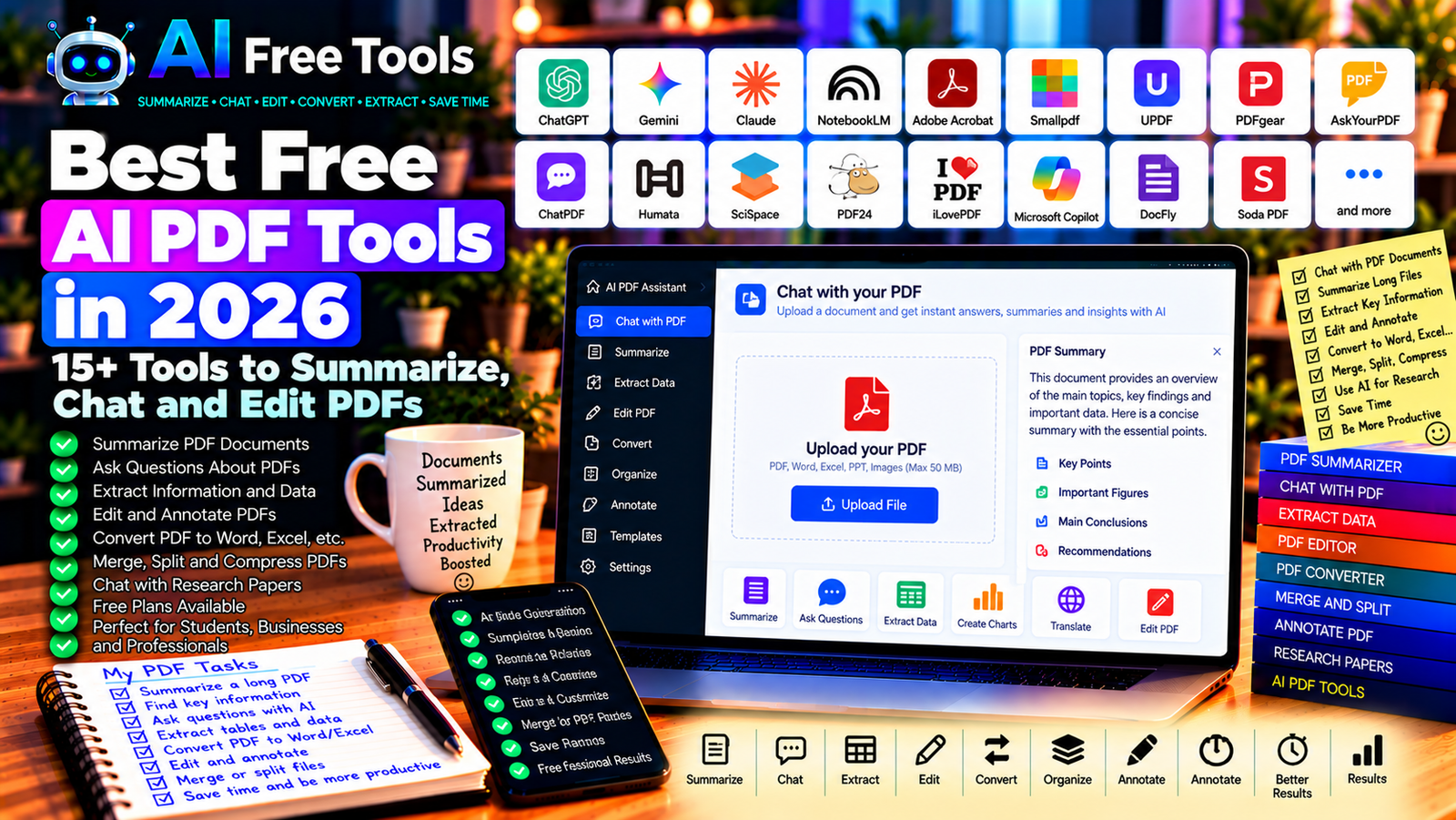
Best Free AI PDF Tools in 2026: 15+ Tools to Summarize, Chat and Edit PDFs
PDF files are everywhere. Students use them for textbooks and research papers, businesses use them for contracts and reports, and professionals rely on them for invoices, proposals, manuals, and technical documents.
However, reading a long PDF, finding a specific detail, or extracting information from dozens of pages can take a lot of time.
Free AI PDF tools can make these tasks easier. Depending on the platform, you can summarize a document, ask questions about its contents, locate important information, extract data, or prepare notes from a lengthy report.
In this guide, we compare 17 AI assistants and PDF tools in 2026. We explain what each tool does, which free options are available, and how to choose the right solution for your needs.
Important: Some tools specialize in chatting with documents, while others focus on editing, conversion, or PDF management. Free usage limits, file sizes, supported formats, and AI features can change. Always verify important answers against the original document.
Quick Comparison: Best Free AI PDF Tools
| Tool | Best For | Free Access |
|---|---|---|
| ChatGPT | Asking questions about supported PDF files | Free tier with limits |
| Google Gemini | Understanding and summarizing documents | Free tier with limits |
| Claude | Analyzing longer documents | Free tier with limits |
| NotebookLM | Researching and summarizing source documents | Free access with limits |
| Adobe Acrobat AI Assistant | AI assistance for PDFs | Availability and pricing vary |
| Smallpdf AI PDF | Summarizing and interacting with PDFs | Free usage with limits |
| UPDF AI | AI-assisted PDF workflows | Free features or trial limits may apply |
| PDFgear | Reading and editing PDFs | Free features; AI availability may vary |
| AskYourPDF | Chatting with PDF documents | Free plan with limits |
| Humata AI | Asking questions about documents | Free access and usage limits vary |
| ChatPDF | Summarizing and querying PDFs | Free access with restrictions |
| SciSpace | Understanding research papers | Free tools with limits |
| Sharly AI | Summarizing and analyzing documents | Current free limits may vary |
| PDF24 Tools | Everyday PDF operations | Free core tools |
| iLovePDF | Editing and converting PDF files | Free tools with restrictions |
| Sejda PDF | Editing and processing PDFs | Free limits apply |
| Microsoft Copilot | Understanding document content in eligible workflows | Free tier; file features vary |
1. ChatGPT — Best for Asking Questions About PDFs
ChatGPT can help analyze supported uploaded PDF files and explain their contents. Instead of reading an entire document manually, you can ask focused questions, request a summary, or ask it to extract specific information.
For example, a business owner could ask for a summary of a supplier’s quotation, while a student could request an explanation of a chapter.
Best features:
- Summarize supported PDF documents.
- Answer questions about document contents.
- Extract key points and important dates.
- Explain difficult passages in simpler language.
- Help organize information into tables or notes.
Free access: ChatGPT offers a free tier with usage and feature limits. File uploads and analysis capabilities may be restricted.
Best for: Students, professionals, researchers, and small business owners.
Official website: https://chatgpt.com/
Example prompt:
“Summarize this PDF in clear English. List the main topics, important dates, key figures, and conclusions. If information is missing or unclear, say so instead of guessing. Include page references when available.”
2. Google Gemini — Best for Document Understanding
Google Gemini can help users understand supported documents, summarize information, and answer questions about uploaded files when the relevant features are available.
It can be useful for extracting the main ideas from reports, preparing study notes, or comparing information from different sources.
Best features:
- Summarize supported documents.
- Explain difficult passages.
- Extract important information.
- Prepare notes and question lists.
- Assist with eligible Google productivity workflows.
Free access: Gemini offers a free tier with usage limits. File handling and advanced features depend on current availability, account, and plan.
Best for: Students, researchers, office workers, and Google ecosystem users.
Official website: https://gemini.google.com/
3. Claude — Best for Analyzing Long Documents
Claude can help interpret supported documents, summarize long passages, compare sections, and answer detailed questions about their contents.
It can be particularly useful for reports, research papers, technical documentation, and business material that requires careful explanation.
Best features:
- Summarize supported PDF content.
- Explain complex passages.
- Compare arguments and sections.
- Extract key information.
- Help prepare structured notes.
Free access: Claude offers a free tier with usage limits. File support and available capabilities may change.
Best for: Researchers, students, consultants, and professionals working with lengthy documents.
Official website: https://claude.ai/
4. NotebookLM — Best for Researching Source Documents
NotebookLM is a research assistant designed to help users work with supplied sources. Depending on current support, sources can include PDFs and other document formats.
You can ask questions about your source material, create summaries, and organize information for research or study.
Best features:
- Work with supported source documents.
- Ask questions about supplied material.
- Generate summaries and study notes.
- Identify relevant information across sources.
- Support research and learning workflows.
Free access: NotebookLM offers free access with usage limits. Source counts and certain features may vary by plan.
Best for: Students, researchers, teachers, and professionals reviewing multiple documents.
Official website: https://notebooklm.google.com/
5. Adobe Acrobat AI Assistant — Best for PDF Workflows
Adobe Acrobat is a well-known PDF platform, and its AI Assistant provides AI-powered document interaction in eligible products and plans.
Depending on availability, it can help summarize documents, answer questions, and locate important information. Traditional PDF features and AI features may have separate access conditions.
Best features to investigate:
- Summarize supported PDF documents.
- Ask questions about document contents.
- Identify key information.
- Work within supported Acrobat workflows.
- Combine document review with PDF management.
Free access: AI Assistant availability and pricing depend on the current Adobe product, subscription, and region. Do not assume that all AI functions are free.
Best for: Professionals, businesses, and users who already work with Acrobat.
Official website: https://www.adobe.com/acrobat.html
6. Smallpdf AI PDF — Best for Simple PDF Summaries
Smallpdf provides online PDF tools and AI-assisted document features. Depending on current availability, you may be able to summarize a PDF or interact with its content.
It is useful when you want a browser-based workflow without installing a desktop application.
Best features to investigate:
- Summarize supported PDFs.
- Ask questions about documents.
- Convert supported file formats.
- Compress and organize PDFs.
- Use browser-based document tools.
Free access: Smallpdf offers free tools with restrictions. AI usage, file processing, and advanced features may require a paid plan.
Best for: Students, freelancers, office workers, and people who occasionally process PDFs.
Official website: https://smallpdf.com/
7. UPDF AI — Best for AI-Assisted PDF Management
UPDF combines PDF editing and document management with AI-related features in supported versions.
It may be useful if you need to review a PDF and make document changes within the same application.
Best features to investigate:
- Summarize supported documents.
- Ask questions about PDF contents.
- Edit and annotate PDFs.
- Organize pages and files.
- Use supported AI document features.
Free access: Free features, AI credits, and trial conditions depend on the current plan and product version.
Best for: Students, professionals, and users who need both PDF editing and AI assistance.
Official website: https://updf.com/
8. PDFgear — Best for Free PDF Editing
PDFgear provides tools for reading, editing, annotating, and managing PDF documents. Its AI-related capabilities may vary by product version and current offering.
It is worth considering when your main priority is everyday PDF work rather than a specialized document-chat service.
Best features:
- Read and annotate PDF files.
- Edit supported PDF content.
- Convert documents using supported tools.
- Organize and manage pages.
- Explore eligible AI-assisted features.
Free access: PDFgear provides free PDF functionality. Check the current product information to confirm which AI features are available and under what conditions.
Best for: Students, home users, freelancers, and small businesses.
Official website: https://www.pdfgear.com/
9. AskYourPDF — Best for Chatting with Documents
AskYourPDF is designed to let users interact with supported documents through questions and answers.
It can help you locate specific details, summarize sections, and understand the contents of a document without manually searching every page.
Best features:
- Ask questions about supported documents.
- Summarize important information.
- Extract key points.
- Support document-based research.
- Explore available integrations.
Free access: AskYourPDF offers free access with limits that may apply to document size, usage, or advanced features.
Best for: Students, researchers, and professionals who regularly review PDFs.
Official website: https://askyourpdf.com/
10. Humata AI — Best for Questioning Document Collections
Humata AI focuses on document-based question answering and information discovery. Depending on current product features, it can help users review supported documents and locate relevant passages.
It may be useful when you need to investigate specific questions across technical or research material.
Best features to investigate:
- Ask questions about uploaded documents.
- Summarize supported material.
- Find relevant information.
- Support document-based research workflows.
- Review available citation or source-reference features.
Free access: Free access and usage limits vary. Check the current plan before uploading a large document collection.
Best for: Researchers, analysts, consultants, and professionals reviewing complex material.
Official website: https://www.humata.ai/
11. ChatPDF — Best for Quick PDF Questions
ChatPDF lets users interact with supported PDF documents through a conversational interface.
It can be helpful when you want to understand a report, locate a definition, or prepare a summary from a document.
Best features:
- Ask questions about a PDF.
- Summarize document contents.
- Find information relevant to a question.
- Support study and research tasks.
- Work through a browser-based interface.
Free access: ChatPDF provides free access with restrictions. Document counts, file sizes, and daily usage may be limited.
Best for: Students, researchers, and users who need quick answers from PDFs.
Official website: https://www.chatpdf.com/
12. SciSpace — Best for Understanding Research Papers
SciSpace provides tools designed to help users read and understand scientific literature. Its document features can help explain technical passages and investigate research papers.
It is especially useful when a paper contains unfamiliar terminology or complex methodology.
Best features:
- Explore scientific papers.
- Explain technical passages.
- Summarize research findings.
- Help locate related literature.
- Support research and literature-review workflows.
Free access: SciSpace offers free tools with limits. Advanced features and usage allowances may require payment.
Best for: Students, academics, researchers, and people reading scientific literature.
Official website: https://scispace.com/
13. Sharly AI — Best for Summarizing Multiple Documents
Sharly AI has focused on summarizing and interacting with documents. It may help users extract key points from supported files and organize information for review.
Check the current product and pricing details before relying on it for a recurring workflow.
Best features to investigate:
- Summarize supported documents.
- Ask questions about document content.
- Extract key information.
- Support document-based research.
- Organize insights from source material.
Free access: Current availability and usage limits may vary.
Best for: Researchers, consultants, students, and professionals handling multiple documents.
Official website: https://www.sharly.ai/
14. PDF24 Tools — Best for Everyday PDF Operations
PDF24 Tools provides browser-based and desktop utilities for common PDF tasks. It is not primarily an AI document assistant, but it is useful for preparing files before analyzing them with an AI tool.
Best features:
- Merge and split PDFs.
- Compress documents.
- Convert supported file formats.
- Rotate and organize pages.
- Extract pages from documents.
Free access: Many core PDF24 tools are available free. Check the service’s current terms and the processing method used for your files.
Best for: Students, office workers, freelancers, and anyone who needs everyday PDF utilities.
Official website: https://tools.pdf24.org/
15. iLovePDF — Best for Converting and Managing PDFs
iLovePDF provides online tools for converting, compressing, merging, splitting, and organizing PDF documents.
It is useful when you need to prepare a document for analysis or convert it into another format before working with its contents.
Best features:
- Merge and split PDF files.
- Compress PDFs.
- Convert supported document formats.
- Add page numbers or organize pages.
- Use supported document-management tools.
Free access: iLovePDF offers free tools with usage restrictions. Advanced processing and additional capabilities may require payment.
Best for: Students, freelancers, office workers, and businesses.
Official website: https://www.ilovepdf.com/
16. Sejda PDF — Best for Browser-Based PDF Editing
Sejda provides tools for editing, splitting, merging, compressing, and converting PDF documents.
It is not primarily an AI chatbot, but it can be useful when you need to modify or prepare a PDF before using a document-analysis assistant.
Best features:
- Edit supported PDF content.
- Merge and split files.
- Compress documents.
- Convert supported formats.
- Work with browser-based PDF tools.
Free access: Sejda provides free access with daily or task-related restrictions. Some tasks and larger files may require a paid plan.
Best for: Students, freelancers, and users who occasionally edit PDF documents.
Official website: https://www.sejda.com/
17. Microsoft Copilot — Best for Document Understanding in Microsoft Workflows
Microsoft Copilot can help explain and summarize information in eligible workflows. PDF support and file-analysis capabilities depend on the particular Copilot product, account, and current feature availability.
It may be useful if you already use Microsoft tools and want help understanding document content.
Best features to investigate:
- Summarize supported content.
- Explain passages in plain language.
- Extract key information.
- Help organize notes from documents.
- Support eligible Microsoft productivity workflows.
Free access: Some Copilot experiences are free, but document features and Microsoft 365 integrations may require a qualifying subscription.
Best for: Office workers, students, and Microsoft ecosystem users.
Official website: https://www.microsoft.com/microsoft-copilot
How to Choose the Best Free AI PDF Tool
The right tool depends on whether you need to understand a document, edit its pages, convert its format, or research several sources.
| Your Main Goal | Recommended Starting Tools |
|---|---|
| Ask questions about a PDF | ChatGPT, ChatPDF, or AskYourPDF |
| Summarize research sources | NotebookLM or Claude |
| Understand scientific papers | SciSpace |
| Edit or annotate PDF files | PDFgear or Sejda |
| Merge, split, or compress PDFs | PDF24 Tools or iLovePDF |
| Work within Adobe PDF workflows | Adobe Acrobat |
| Analyze information from several documents | NotebookLM or a document-chat tool |
| Prepare a PDF before AI analysis | PDF24 Tools or iLovePDF |
Best Free AI PDF Tools for Students
Students often need to understand textbooks, summarize chapters, review research papers, and prepare revision notes.
NotebookLM, ChatGPT, Claude, and SciSpace are useful starting points, depending on the type of document and the features available in your account.
For better results, ask specific questions rather than requesting a vague summary. You can also ask the tool to create a glossary, list the main arguments, or prepare practice questions based on the document.
Always verify important statements against the original source and follow your institution’s academic-integrity rules.
Best AI PDF Tools for Businesses
Businesses frequently work with quotations, invoices, contracts, technical specifications, and supplier documents.
An AI assistant can help summarize a document or identify the sections that require attention. PDF24 Tools and iLovePDF can help prepare or convert files, while document-chat tools can support information retrieval.
For contracts, financial documents, or commercial commitments, verify every important number, date, condition, and obligation manually. AI summaries should not replace a full review of critical documents.
Best Free AI PDF Tools for Research
Researchers may need to review multiple papers, extract methods and conclusions, and compare findings.
NotebookLM and SciSpace are worth exploring for source-based research, while ChatGPT and Claude can help explain technical passages in supported documents.
Keep track of original sources and page references. A generated summary can omit qualifications or misunderstand a research result, so confirm quotations and conclusions in the source itself.
How to Summarize a PDF with AI in Five Steps
Step 1: Choose the Right Tool
Select a document-chat assistant if you need questions and answers, or a PDF utility if you need to merge, split, compress, or convert a file.
Step 2: Upload the Document
Check the file-size limit and supported formats. If the PDF is scanned, you may need a tool with optical character recognition (OCR) to read the text.
Step 3: Ask a Specific Question
Try this prompt:
“Summarize this PDF in clear English. Identify the main purpose, key findings, important figures, dates, and conclusions. Organize the answer into sections. Distinguish information explicitly stated in the document from your own interpretation, and do not invent missing information.”
Step 4: Ask Follow-Up Questions
Request clarification of difficult passages, definitions of technical terms, or a comparison between two sections.
Step 5: Verify the Results
Check important facts, quotations, numbers, and page references against the original document. Do not rely on an AI-generated summary alone when making legal, financial, medical, or business-critical decisions.
Can AI Read Scanned PDF Documents?
Some tools can read scanned PDFs if they support OCR, which converts text in images into machine-readable text. Others may struggle with scanned pages, poor image quality, handwriting, or complicated tables.
If the tool cannot recognize the text, use an OCR-capable PDF utility first, then upload the processed document to your AI assistant.
Always verify extracted numbers and tables because OCR can confuse similar characters or misread columns.
Are Free AI PDF Tools Safe?
Safety depends on the service, its data-handling practices, and the type of document you upload.
Before uploading a PDF, consider whether it contains personal information, customer records, confidential contracts, financial details, or proprietary business information. Check the provider’s privacy policy and avoid uploading sensitive files unless the service is approved for that purpose.
For important documents, also keep a copy of the original file and verify AI-generated summaries before acting on them.
Frequently Asked Questions
What is the best free AI PDF tool in 2026?
ChatGPT, NotebookLM, Claude, and document-chat tools such as ChatPDF are useful starting points for understanding supported PDFs. PDF24 Tools and iLovePDF are practical for common PDF operations.
Can AI summarize a PDF for free?
Yes. Some AI assistants and document tools provide free summaries with usage limits. File size, document count, and advanced features vary by platform.
Can I ask questions about a PDF instead of reading the whole document?
Yes. Document-chat tools let you ask questions about supported files. For important information, request page references when available and verify the answer in the original document.
Can AI extract tables from a PDF?
Some tools can extract tables or analyze supported document content. Results depend on the PDF structure, whether the text is selectable, and the tool’s capabilities. Check numerical values against the original table.
Can AI read a scanned PDF?
Only if the tool supports image-based document processing or OCR for that file. Otherwise, convert the scanned pages into machine-readable text first.
Are free AI PDF tools suitable for contracts?
They can help locate clauses or prepare an initial summary, but they should not replace careful legal review. Verify every important obligation, date, exception, and financial term.
Do I need to install software to use AI PDF tools?
No. Many document-chat services and PDF utilities work in a browser. Desktop applications can be useful for offline work, larger files, or additional editing features.
Final Verdict
The best free AI PDF tools in 2026 can help you summarize documents, find information, understand complex passages, and manage PDF files more efficiently.
For conversational analysis, start with ChatGPT, Claude, or NotebookLM. For research papers, explore SciSpace. For everyday PDF editing and conversion, try PDF24 Tools, iLovePDF, or PDFgear. For specialized document-chat workflows, compare ChatPDF and AskYourPDF.
Choose a tool based on your document type, privacy requirements, file limits, and desired workflow. Always verify important facts and figures against the original PDF before making decisions.
Explore more guides on AI Free Tools:
Leave a Reply