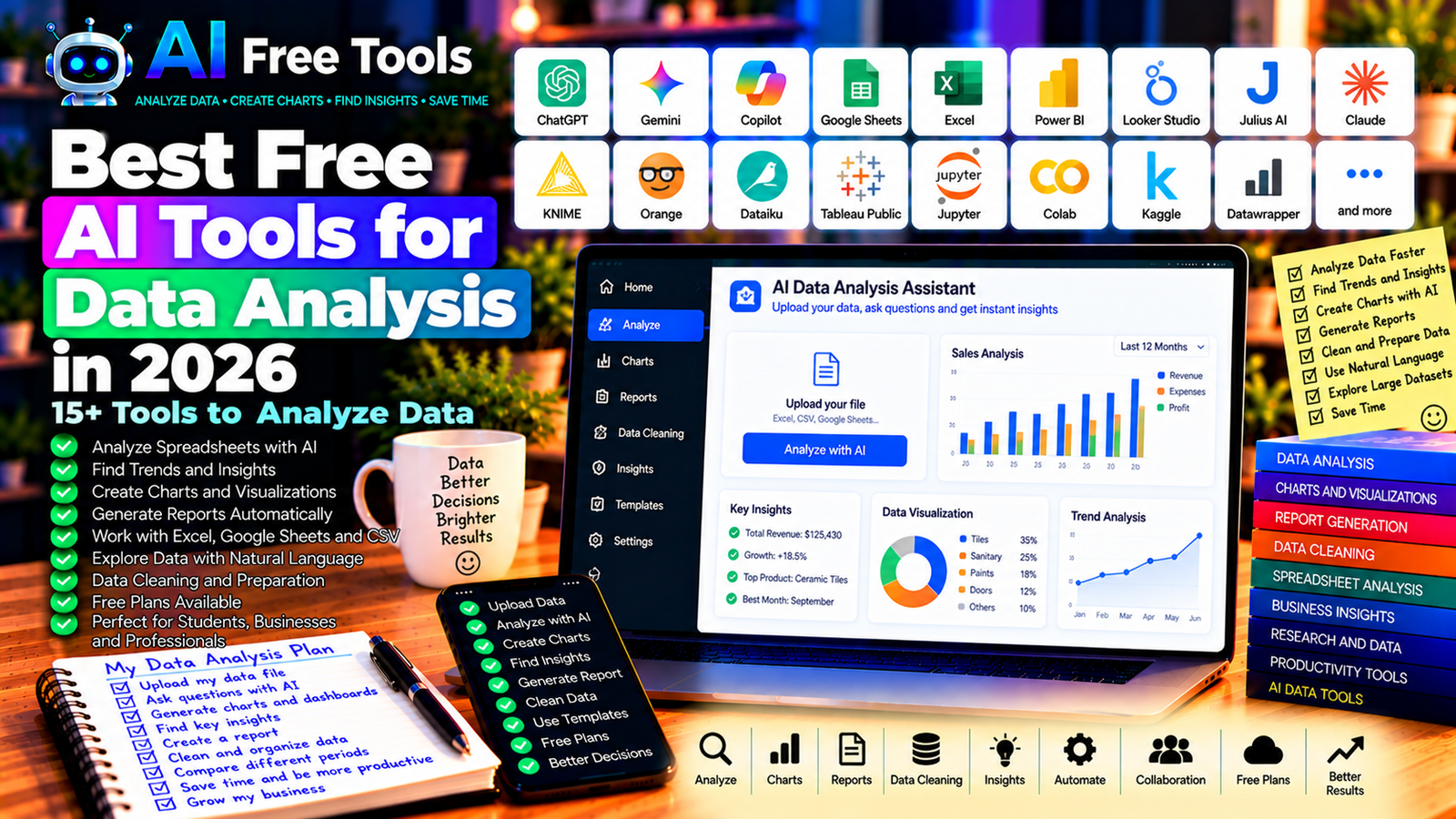
Best Free AI Tools for Data Analysis in 2026: 15+ Tools to Analyze Data
Data analysis helps businesses, researchers, students, and professionals make better decisions. However, working with spreadsheets, large datasets, formulas, and charts can be time-consuming, especially if you do not have advanced technical skills.
Free AI tools for data analysis can simplify many of these tasks. Depending on the platform, you can upload a spreadsheet, ask questions about your data, identify trends, generate charts, write formulas, or prepare a report from your findings.
In this guide, we compare 17 AI assistants and data analysis platforms in 2026. You will discover their main features, free-access options, and the situations in which each tool may be useful.
Important: Some tools are dedicated data analysis platforms, while others are spreadsheets, programming libraries, or AI assistants that support analytical work. Free plans, file limits, and advanced features can change. Always verify calculations and conclusions against your original data.
Quick Comparison: Best Free AI Tools for Data Analysis
| Tool | Best For | Free Access |
|---|---|---|
| ChatGPT | Analyzing supported spreadsheet files | Free tier with limits |
| Google Gemini | Data questions and analysis assistance | Free tier with limits |
| Microsoft Copilot | Excel and Microsoft workflows | Features depend on product and plan |
| Google Sheets | Spreadsheet analysis and collaboration | Core features available free |
| Microsoft Excel | Formulas, pivot tables, and charts | Access depends on version and plan |
| Julius AI | Conversational data analysis | Usage limits may apply |
| Claude | Interpreting datasets and explaining findings | Free tier with limits |
| Power BI | Business intelligence and dashboards | Free desktop authoring; sharing may require payment |
| Google Looker Studio | Interactive business dashboards | Free core platform |
| KNIME | Visual data workflows | Free options and commercial products |
| Orange Data Mining | Visual data analysis and machine learning | Free and open source |
| Dataiku | Collaborative analytics and AI workflows | Free access depends on current offering |
| Tableau Public | Public data visualizations | Free with public publishing conditions |
| Jupyter Notebook | Python-based data analysis | Free and open source |
| Google Colab | Running Python analysis in a browser | Free access with resource limits |
| Kaggle | Datasets and notebook-based analysis | Free platform features with usage limits |
| Datawrapper | Charts and visual reports | Free plan with restrictions |
1. ChatGPT — Best for Analyzing Spreadsheets with AI
ChatGPT can help users explore supported datasets, explain numerical patterns, identify potential anomalies, and prepare summaries. Depending on current capabilities and usage limits, you may be able to upload a spreadsheet and ask questions about its contents.
For example, a small business owner could use it to investigate monthly sales, compare product categories, or identify changes in expenses.
Best features:
- Help analyze supported spreadsheet files.
- Explain trends and numerical relationships.
- Suggest calculations and formulas.
- Generate charts where supported.
- Summarize findings in plain language.
Free access: ChatGPT offers a free tier with usage and feature limits. File analysis and advanced capabilities may be restricted.
Best for: Small business owners, students, analysts, freelancers, and non-technical users.
Official website: https://chatgpt.com/
Example prompt
“Analyze this sales spreadsheet. Calculate total sales by month and product category, identify the three highest-performing products, and suggest a suitable chart. Explain your calculations and identify missing or inconsistent data. Do not invent values.”
2. Google Gemini — Best for Data Questions and Google Workflows
Google Gemini can help users understand data, develop analytical questions, explain formulas, and interpret supported information. It may also complement Google Sheets and other Google productivity tools.
The exact integrations and file-analysis capabilities depend on the account, subscription, and current availability.
Best features:
- Explain spreadsheet formulas.
- Suggest analytical methods.
- Help summarize supported datasets.
- Identify questions worth investigating.
- Assist with eligible Google productivity workflows.
Free access: Gemini offers a free tier with usage limits. Advanced features and integrations may require an eligible plan.
Best for: Google Sheets users, students, researchers, and business professionals.
Official website: https://gemini.google.com/
3. Microsoft Copilot — Best for Microsoft Data Workflows
Microsoft Copilot can help users explain formulas, organize information, and work with data through eligible Microsoft products.
Its capabilities vary between general Copilot access, Excel, Microsoft 365, and other subscriptions. Confirm that your account supports the feature you want before relying on it.
Best features to investigate:
- Help write and explain formulas.
- Summarize supported information.
- Assist with spreadsheet workflows.
- Suggest analytical approaches.
- Support eligible Microsoft 365 integrations.
Free access: Some Copilot experiences are available free, but integrated Excel features and advanced capabilities may require a qualifying subscription.
Best for: Office workers, accountants, business owners, and Excel users.
Official website: https://www.microsoft.com/microsoft-copilot
4. Google Sheets — Best for Free Spreadsheet Analysis
Google Sheets is a browser-based spreadsheet application that allows users to organize data, calculate totals, create charts, and collaborate with others.
It is not exclusively an AI analytics tool, but it works well with AI assistants that help write formulas, suggest analysis methods, and explain results.
Best features:
- Organize data into tables.
- Calculate totals and averages.
- Use formulas and supported pivot-table features.
- Create charts and reports.
- Collaborate on spreadsheets online.
Free access: Core Google Sheets features are available free with a Google account. Certain AI integrations depend on the account and plan.
Best for: Students, freelancers, small businesses, and teams that need collaborative analysis.
Official website: https://sheets.google.com/
5. Microsoft Excel — Best for Spreadsheet Calculations
Excel is a widely used spreadsheet application for calculations, reporting, budgeting, and business analysis.
You can combine Excel with AI assistance to write formulas, explain errors, prepare pivot tables, and plan charts. Built-in AI features depend on the version and subscription.
Best features:
- Organize and clean spreadsheet data.
- Use formulas and supported pivot tables.
- Calculate totals, averages, and comparisons.
- Create charts and reports.
- Work with eligible AI-powered capabilities.
Free access: Access depends on the Excel version, platform, and account. Some web features may be available free, while desktop and advanced AI features may require payment.
Best for: Accountants, business owners, analysts, and office workers.
Official website: https://www.microsoft.com/microsoft-365/excel
6. Julius AI — Best for Conversational Data Analysis
Julius AI is designed to help users explore data through natural-language questions and supported file uploads.
Instead of manually creating every calculation, you can ask questions about a dataset and explore the results through supported analytical workflows.
Best features to investigate:
- Analyze supported datasets.
- Ask questions in plain English.
- Generate charts and visual summaries.
- Explore trends and potential outliers.
- Prepare analytical explanations.
Free access: Usage limits, supported files, and available features can change. Check the current plan before uploading large datasets.
Best for: Students, researchers, analysts, and professionals who prefer conversational analysis.
Official website: https://julius.ai/
7. Claude — Best for Explaining Complex Data
Claude can help interpret supported information, explain analytical results, review calculations, and summarize findings. It can also help write Python or spreadsheet formulas for specific analysis tasks.
For critical calculations, verify the results independently instead of relying solely on a generated explanation.
Best features:
- Explain datasets and analytical concepts.
- Help develop formulas and code.
- Summarize findings.
- Suggest possible analytical approaches.
- Help document the analysis process.
Free access: Claude offers a free tier with usage limits. File and analysis capabilities depend on current availability.
Best for: Researchers, students, professionals, and users working with complex information.
Official website: https://claude.ai/
8. Power BI — Best for Business Intelligence
Microsoft Power BI is a business intelligence platform that helps organizations turn data into interactive reports and dashboards.
It can be useful for analyzing sales, expenses, inventory, marketing results, and operational performance. AI-related capabilities depend on the product, configuration, and license.
Best features:
- Connect supported data sources.
- Create interactive reports.
- Build dashboards and charts.
- Compare business performance.
- Explore eligible AI-assisted analytics.
Free access: Power BI Desktop provides free report-building capabilities. Sharing, collaboration, cloud publishing, and some advanced features may require paid licensing.
Best for: Business analysts, managers, accountants, and organizations.
Official website: https://powerbi.microsoft.com/
9. Google Looker Studio — Best for Interactive Dashboards
Google Looker Studio helps users transform supported data sources into interactive reports and dashboards.
It is particularly useful for monitoring website traffic, marketing campaigns, business metrics, and other recurring indicators.
Best features:
- Build interactive dashboards.
- Create charts and scorecards.
- Connect supported data sources.
- Share reports with other users.
- Monitor key performance indicators.
Free access: Looker Studio provides a free core platform. Certain third-party connectors and integrations may involve separate costs.
Best for: Marketers, website owners, small businesses, and analysts.
Official website: https://lookerstudio.google.com/
10. KNIME — Best for Visual Data Workflows
KNIME is a data analytics platform that allows users to create workflows by connecting visual components. It can support data preparation, analysis, automation, and machine learning tasks.
Its visual approach can be useful when you want to build a repeatable process without writing every operation from scratch.
Best features:
- Create visual analytical workflows.
- Prepare and transform data.
- Connect analysis steps.
- Support machine learning workflows.
- Reuse workflows for recurring tasks.
Free access: KNIME provides free options, including its open-source analytics platform. Commercial products and hosted capabilities may have different terms.
Best for: Analysts, researchers, technical users, and organizations building repeatable data workflows.
Official website: https://www.knime.com/
11. Orange Data Mining — Best for Visual Machine Learning
Orange Data Mining is an open-source tool for visual data analysis and machine learning. Users build workflows by connecting components for data preparation, visualization, and modeling.
It can help beginners explore data science concepts without writing extensive code.
Best features:
- Explore and visualize datasets.
- Build visual analytical workflows.
- Try supported machine learning methods.
- Compare data patterns.
- Learn data science through practical examples.
Free access: Orange Data Mining is free and open source.
Best for: Students, researchers, educators, and beginners learning data analysis.
Official website: https://orangedatamining.com/
12. Dataiku — Best for Collaborative Analytics Workflows
Dataiku is a platform for data preparation, analytics, and AI workflows. It is designed to help teams work with data and build repeatable analytical processes.
Its available capabilities and access conditions depend on the current product offering.
Best features to investigate:
- Prepare and transform datasets.
- Build analytical workflows.
- Support collaboration between technical and non-technical users.
- Explore machine learning capabilities.
- Organize data projects.
Free access: Check the current free, trial, and commercial options directly with Dataiku. Do not assume every feature is available without payment.
Best for: Analytics teams, data professionals, and organizations with more complex requirements.
Official website: https://www.dataiku.com/
13. Tableau Public — Best for Public Data Visualizations
Tableau Public helps users create and publish interactive visualizations and dashboards. It is useful when you want to communicate insights through charts rather than tables alone.
It is not a complete AI data analysis assistant, but it can complement AI-generated insights with interactive visual presentation.
Best features:
- Create interactive charts.
- Build dashboards.
- Explore relationships in data.
- Publish visualizations publicly.
- Learn from public examples.
Free access: Tableau Public is free, but published visualizations are public. Never use it for confidential customer, company, or financial data.
Best for: Students, researchers, data enthusiasts, and public-data projects.
Official website: https://public.tableau.com/
14. Jupyter Notebook — Best for Python-Based Analysis
Jupyter Notebook is an open-source environment that lets users combine code, calculations, charts, and explanations in a single document.
It is particularly useful for people who want control over their analysis or need repeatable calculations. AI coding assistants can help write and explain Python code, but generated code should always be tested.
Best features:
- Run Python code interactively.
- Clean and analyze datasets.
- Create charts and tables.
- Document analytical steps.
- Reproduce and update analyses.
Free access: Jupyter Notebook is free and open source. Running it locally requires an appropriate software environment.
Best for: Developers, data analysts, researchers, and students learning Python.
Official website: https://jupyter.org/
15. Google Colab — Best for Running Data Analysis in a Browser
Google Colab provides a hosted notebook environment for running Python code through a browser. It can be useful if you want to experiment with data analysis without configuring a local Python environment first.
You can combine it with AI assistance to generate code, clean datasets, and create visualizations.
Best features:
- Run Python notebooks online.
- Analyze supported datasets.
- Create charts using Python libraries.
- Share notebooks.
- Access computing resources subject to availability and limits.
Free access: Colab offers free access with resource, usage, and session limits. Paid options may provide additional resources.
Best for: Students, researchers, developers, and data science beginners.
Official website: https://colab.research.google.com/
16. Kaggle — Best for Datasets and Practical Analysis
Kaggle is a platform for data science learning, datasets, competitions, and notebook-based analysis.
It can help you find example datasets, experiment with analysis methods, and learn from community notebooks. Some datasets may require you to review their licenses and usage conditions.
Best features:
- Explore public datasets.
- Run supported notebooks.
- Learn from example analyses.
- Practice machine learning workflows.
- Participate in data science projects and competitions.
Free access: Kaggle provides many free platform features, subject to resource limits and dataset-specific terms.
Best for: Students, data science learners, researchers, and developers.
Official website: https://www.kaggle.com/
17. Datawrapper — Best for Turning Results into Clear Charts
Datawrapper helps users create charts, maps, and tables from structured data. It is useful when you have already analyzed your dataset and need to communicate the findings clearly.
You can use an AI assistant to help interpret the results, then create a visualization with Datawrapper.
Best features:
- Create charts and maps.
- Present data in readable tables.
- Customize labels and visual styles.
- Embed supported visualizations.
- Prepare charts for reports and articles.
Free access: Datawrapper offers free access with restrictions that may apply to publishing, exports, or other features.
Best for: Journalists, bloggers, researchers, educators, and content creators.
Official website: https://www.datawrapper.de/
How to Choose the Best Free AI Tool for Data Analysis
The best option depends on your technical skills, dataset size, and desired output.
| Your Main Goal | Recommended Starting Tools |
|---|---|
| Analyze a spreadsheet using plain English | ChatGPT or Julius AI |
| Understand formulas and spreadsheet data | Excel, Google Sheets, or an AI assistant |
| Build business dashboards | Power BI or Looker Studio |
| Create repeatable visual workflows | KNIME or Orange |
| Analyze data with Python | Jupyter Notebook or Google Colab |
| Find datasets for practice | Kaggle |
| Publish charts and visual reports | Datawrapper or Tableau Public |
| Explain complex findings | ChatGPT or Claude |
Best Free AI Data Analysis Tools for Small Businesses
Small businesses can use spreadsheets and AI assistants to monitor revenue, expenses, inventory, and customer activity.
For simple tasks, Google Sheets or Excel combined with an AI assistant may be enough. For recurring reports and dashboards, Looker Studio or Power BI may be more suitable.
Start with a specific question, such as identifying your highest-selling products or comparing monthly expenses. Make sure the underlying data is complete and consistent before drawing conclusions.
Best AI Tools for Data Analysis Without Coding
If you do not know how to program, start with ChatGPT, Gemini, Julius AI, Google Sheets, or Excel.
These tools can help explain data and suggest calculations, although file uploads and advanced features may have limits. For visual workflows, KNIME or Orange can provide more control without requiring you to write every step as code.
Best Free Tools for Data Analysis with Python
If you want to learn programming or build repeatable analyses, Jupyter Notebook and Google Colab are practical starting points.
You can use Python libraries to clean data, calculate statistics, and create charts. An AI assistant can help explain code, but you should test it with known examples and verify the outputs.
How to Analyze Data with AI in Five Steps
Step 1: Prepare Your Data
Organize your dataset into clear columns and rows. Use consistent date formats, meaningful column names, and appropriate numerical units.
Check for duplicates, missing values, inconsistent labels, and unusual entries.
Step 2: Define Your Question
Decide exactly what you want to learn. For example:
- Which products generate the most revenue?
- How have monthly expenses changed?
- Which marketing channel brings the most visitors?
- Which regions have the highest sales?
- Are there unusual changes in the data?
Step 3: Choose the Right Tool
Use a spreadsheet for simple calculations, a conversational AI assistant for exploratory analysis, or a dashboard platform for recurring reports.
Step 4: Ask AI to Analyze the Data
Try this prompt:
“Analyze the attached dataset to answer the following question: [insert question]. Explain the steps and calculations used, identify missing or inconsistent values, and recommend a suitable chart. Distinguish observed facts from possible explanations. Do not invent values, and state any limitations in the data.”
Step 5: Verify the Results
Compare the AI’s calculations with the original dataset. Check totals, formulas, filters, units, and date ranges.
If the result will influence a financial or business decision, independently validate the key calculations before acting on them.
Are Free AI Data Analysis Tools Worth Using?
Yes. They can reduce the time required to explore data, write formulas, generate charts, and summarize findings.
For everyday work, an AI assistant combined with Excel or Google Sheets may be sufficient. More advanced users can explore Python notebooks, visual analytics platforms, and business intelligence tools.
However, AI can make calculation errors, overlook data quality issues, or confuse correlation with causation. Treat generated insights as hypotheses to verify, not automatic proof.
Are AI Data Analysis Tools Safe for Business Data?
Before uploading a dataset, check the tool’s privacy policy, data retention practices, and access controls.
Remove unnecessary personal information and avoid uploading confidential customer records, employee data, financial details, or proprietary information unless the service is approved for that purpose.
Also verify whether a free plan imposes limits on storage, sharing, or access to analytical results.
Frequently Asked Questions
What is the best free AI tool for data analysis in 2026?
ChatGPT and Julius AI are useful starting points for conversational analysis of supported datasets. Google Sheets and Excel are practical for spreadsheet work, while Power BI and Looker Studio are suitable for dashboards.
Can AI analyze Excel files?
Some AI assistants support spreadsheet uploads and can help summarize data, calculate statistics, and suggest charts. File size, usage limits, and available features depend on the tool and account.
Can I analyze data with AI without coding?
Yes. Conversational AI assistants and spreadsheet applications can support many basic analytical tasks without programming. KNIME and Orange also provide visual workflows for more structured analysis.
Are free AI data analysis tools accurate?
They can be helpful, but they may make calculation errors or misinterpret a dataset. Verify results against the original data, especially before making important business or financial decisions.
Which tool is best for business dashboards?
Power BI and Google Looker Studio are strong starting points. The best choice depends on your data sources, sharing requirements, technical skills, and licensing needs.
Can AI help me analyze sales and inventory?
Yes. AI can help compare sales by product, calculate totals, identify unusual changes, and suggest charts. Accurate results depend on clean, complete, and consistently structured data.
Is it safe to upload company spreadsheets to AI tools?
It depends on the service and the information involved. Review data-handling terms and avoid uploading confidential or personal data to tools that have not been approved for that purpose.
Final Verdict
The best free AI tools for data analysis in 2026 can help you explore spreadsheets, identify trends, create visualizations, and communicate findings more efficiently.
For conversational analysis, start with ChatGPT or Julius AI. For spreadsheet calculations, use Google Sheets or Excel. For dashboards, explore Power BI or Looker Studio. If you want to build repeatable analytical workflows, consider KNIME, Jupyter Notebook, or Google Colab.
Choose a tool based on your data, technical skills, privacy requirements, and free-plan limits. Always validate important calculations before using the results to make decisions.
Explore more guides on AI Free Tools:
Leave a Reply