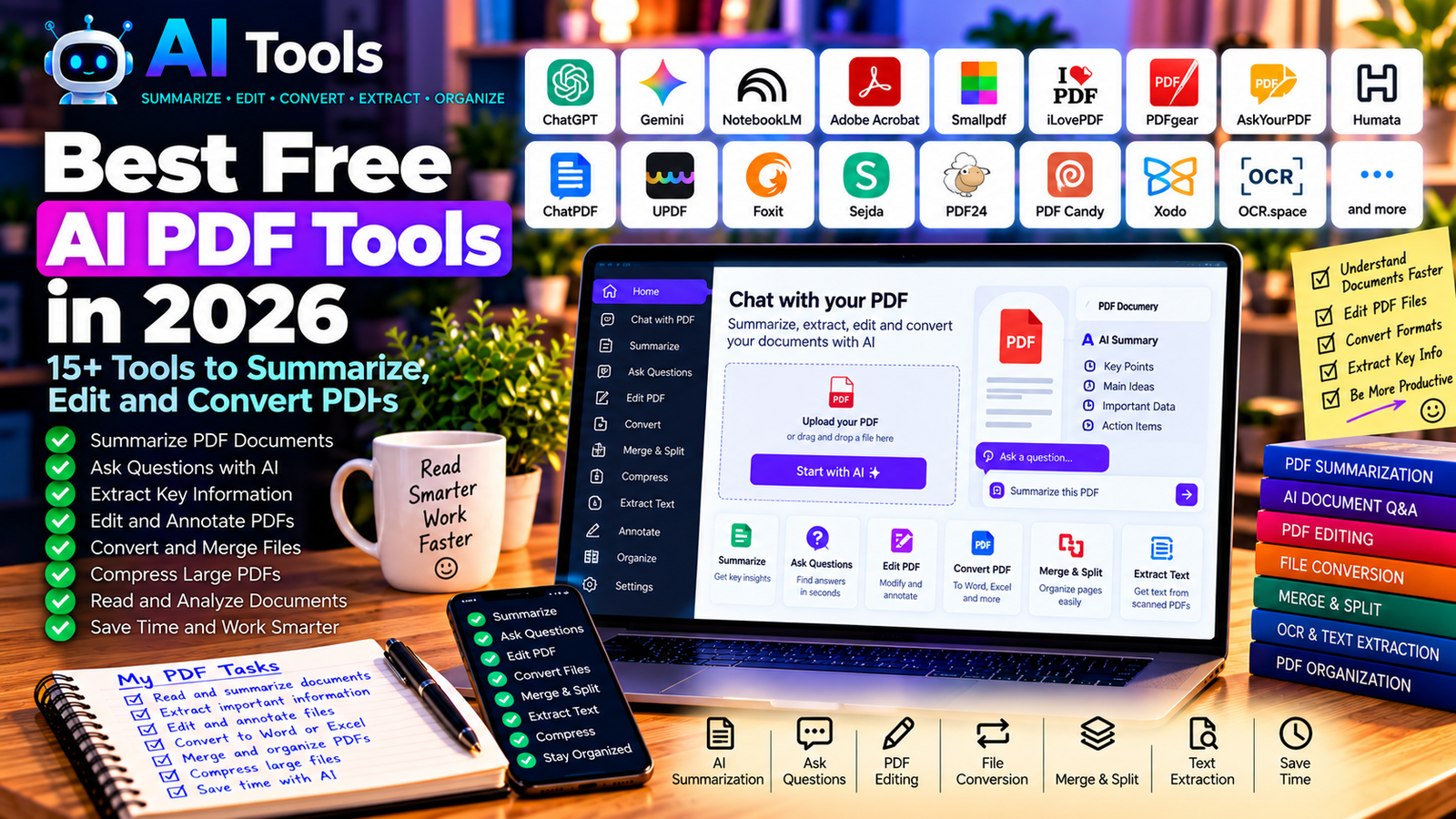
Best Free AI PDF Tools in 2026: 15+ Tools to Summarize, Edit and Convert PDFs
PDF files are everywhere. Students use them for textbooks and research papers, professionals rely on them for reports and contracts, and businesses exchange invoices, manuals, and technical documents every day.
Reading long documents, finding specific information, and converting files manually can take a lot of time. Fortunately, free AI PDF tools can make many of these tasks easier.
Some tools use artificial intelligence to summarize documents and answer questions about their contents. Others focus on editing, converting, merging, compressing, or organizing PDF files.
In this guide, we compare 17 useful tools for working with PDFs in 2026. You will discover which tools are suitable for document analysis, studying, business work, and everyday PDF management.
Important: Free plans and usage limits can change. Some tools provide free PDF utilities but charge for advanced AI features. Others offer limited AI credits or restrict the number and size of documents you can process. Always check the official website before uploading important files.
Quick Comparison: Best Free AI PDF Tools
| Tool | Best For | Free Access |
|---|---|---|
| ChatGPT | Asking questions about documents | Free tier with usage limits |
| Google Gemini | Understanding and summarizing supported files | Free access with limits |
| NotebookLM | Researching source documents | Free access with limits |
| Adobe Acrobat Online | Basic PDF tasks | Selected free tools |
| Smallpdf | PDF conversion and document management | Limited free usage |
| iLovePDF | Merging, splitting, and converting PDFs | Free tools with restrictions |
| PDFgear | Reading and editing PDFs | Free features; verify current AI limits |
| AskYourPDF | Asking questions about PDF documents | Limited free access |
| Humata | Document analysis and questions | Limited free access or plan restrictions |
| ChatPDF | Summarizing and chatting with PDFs | Limited free usage |
| UPDF | PDF editing and AI assistance | Free features with restrictions |
| Foxit PDF Editor | PDF editing and document workflows | Selected free tools or trials |
| Sejda PDF | Online PDF editing | Free daily and file-size limits |
| PDF24 Tools | PDF conversion and organization | Many free utilities |
| PDF Candy | PDF conversion and editing | Free usage with limitations |
| Xodo | Reading, annotating, and editing PDFs | Selected free features |
| OCR.space | Extracting text from scanned documents | Free OCR API with limits |
1. ChatGPT — Best for Understanding PDF Documents
ChatGPT can help you understand the contents of a PDF when file upload and document analysis are available in your account.
You can ask questions about a report, request a summary of a long document, extract key points, or turn a document into a structured list of actions.
For example, a business owner could upload a product catalog and ask for a summary of its main product categories. A student could ask for a chapter summary and a list of important concepts to review.
Best features:
- Summarize supported documents.
- Ask questions about uploaded content.
- Extract key ideas and important points.
- Turn information into tables or outlines.
- Help explain difficult passages.
Free access: A free tier is available, but file uploads, analysis, and other features may have usage limits.
Best for: Students, professionals, researchers, and people who regularly work with documents.
Official website: https://chatgpt.com/
2. Google Gemini — Best for Document Summaries
Google Gemini can assist with understanding and summarizing supported documents, depending on the available interface and account features.
You can use it to identify the main arguments in a report, explain unfamiliar concepts, or generate questions based on a document.
For reliable results, ask the tool to distinguish information explicitly stated in the document from conclusions or assumptions it generates.
Best features:
- Summarize supported documents.
- Explain complex passages.
- Identify themes and key points.
- Help organize information into outlines.
- Support research and follow-up questions.
Free access: Gemini offers free access with usage and feature limits that can vary.
Best for: Students, professionals, and users who need help understanding written material.
Official website: https://gemini.google.com/
3. NotebookLM — Best for Researching Multiple Documents
NotebookLM is a research assistant designed to work with source material. It can be especially useful when you need to analyze several documents rather than a single PDF.
You can add supported sources, ask questions about their contents, and create summaries or study materials based on those sources. Its source-grounded approach can help you locate the information supporting an answer.
Best features:
- Organize supported research documents.
- Ask questions about your sources.
- Generate summaries and study guides.
- Identify relevant passages and source references.
- Compare information across supported sources.
Free access: NotebookLM offers free access, subject to current limits on sources, notebooks, and other features.
Best for: Students, researchers, teachers, and professionals reviewing multiple reports.
Official website: https://notebooklm.google.com/
4. Adobe Acrobat Online — Best for Everyday PDF Tasks
Adobe Acrobat Online provides browser-based PDF tools for common tasks such as converting, organizing, and managing documents.
It is a useful option if you want to make basic changes to a PDF without installing desktop software. Some advanced editing, signing, document processing, and AI features may require an account or paid plan.
Best features:
- Access selected PDF conversion tools.
- Organize and manage PDF files.
- Work with supported document formats.
- Use selected online PDF utilities.
- Access advanced features through eligible plans.
Free access: Selected online tools are available for free, but not every feature is included.
Best for: Office workers, businesses, and users who regularly exchange PDF documents.
Official website: https://www.adobe.com/acrobat/online.html
5. Smallpdf — Best for PDF Conversion
Smallpdf provides a collection of tools for converting and managing PDF files. It can help you convert documents, compress large files, merge PDFs, and perform other common tasks.
For example, if you need to send a large report by email, you can use a compression tool to reduce its size. If you need to edit a document in a word processor, you can investigate the available PDF-to-Word conversion options.
Best features:
- Compress PDF files.
- Merge and split documents.
- Convert supported file formats.
- Perform selected editing tasks.
- Access AI-related features where available.
Free access: Free usage is limited, and some advanced functions require a subscription.
Best for: Students, office workers, and people who frequently convert documents.
Official website: https://smallpdf.com/
6. iLovePDF — Best for Merging, Splitting, and Converting PDFs
iLovePDF offers a broad collection of online PDF utilities. It is particularly useful for routine document management.
You can merge multiple files into one PDF, split a large document into separate files, compress documents, rotate pages, or convert supported formats.
Its primary strength is PDF processing rather than advanced conversational AI, making it a practical companion to AI document assistants.
Best features:
- Merge multiple PDFs.
- Split PDFs into separate documents.
- Compress files.
- Convert supported formats.
- Rotate, organize, and manage pages.
Free access: Many tools have free access, although usage limits and premium features apply.
Best for: Students, administrative staff, freelancers, and businesses.
Official website: https://www.ilovepdf.com/
7. PDFgear — Best for PDF Reading and Editing
PDFgear provides PDF reading and editing tools, with AI-assisted features available in supported versions.
Depending on the current product, it can help users work with document text, annotate pages, organize files, and explore AI-powered document interactions.
Check the latest feature list for your operating system and version before relying on a specific AI function.
Best features:
- Read and annotate PDF documents.
- Access selected editing tools.
- Organize and manage PDF pages.
- Explore supported AI document features.
- Work with PDFs using desktop or supported online tools.
Free access: PDFgear has offered a range of free PDF functions. Verify current AI availability and any feature restrictions.
Best for: Students and professionals who want a combination of PDF reading and editing.
Official website: https://www.pdfgear.com/
8. AskYourPDF — Best for Asking Questions About PDFs
AskYourPDF is designed to help users interact with document content through questions and answers.
Instead of searching manually through a long PDF, you can ask for a summary, locate a topic, or request an explanation of a specific section.
As with other AI document assistants, verify important answers against the original document, especially when dealing with legal, technical, or financial information.
Best features:
- Ask questions about supported documents.
- Generate document summaries.
- Locate relevant information.
- Explore document content conversationally.
- Support research and document review workflows.
Free access: Free access is limited and may depend on document count, size, and available features.
Best for: Researchers, students, and professionals reviewing lengthy PDFs.
Official website: https://askyourpdf.com/
9. Humata — Best for Analyzing Long Documents
Humata is an AI-powered document question-and-answer platform. It is designed to help users extract information from supported documents without reading every page manually.
For example, you can use a document assistant to locate a particular topic in a technical report, summarize the main conclusions, or identify passages that need further review.
Best features:
- Ask questions about uploaded documents.
- Summarize document content.
- Retrieve information from long files.
- Support document-based research.
- Help organize findings for further review.
Free access: Availability and usage limits depend on the current plan.
Best for: Researchers, consultants, and professionals who work with extensive documentation.
Official website: https://www.humata.ai/
10. ChatPDF — Best for Chatting with a PDF
ChatPDF is designed around a simple workflow: provide a supported PDF and ask questions about its content.
It can be useful when you need a quick overview of a report, want to understand a particular section, or need help reviewing study material.
Always confirm important statements in the original source, particularly if the document contains figures, citations, or specialized terminology.
Best features:
- Ask questions about PDF content.
- Generate summaries.
- Explore document sections conversationally.
- Support study and research workflows.
- Reduce time spent searching manually.
Free access: Free usage is limited and can depend on current document and query allowances.
Best for: Students, researchers, and users who need a quick way to explore a document.
Official website: https://www.chatpdf.com/
11. UPDF — Best for PDF Editing with AI Assistance
UPDF combines PDF editing and document management features with AI-related capabilities in supported plans.
It may be useful if you want to read, annotate, edit, organize, or convert documents within one application.
Before choosing it, compare the free and paid feature sets, especially if you need OCR, advanced editing, or AI document analysis.
Best features:
- Read and annotate PDFs.
- Edit supported document elements.
- Organize pages and files.
- Convert supported formats.
- Access AI assistance in eligible versions.
Free access: Free functionality is available with restrictions; advanced features may require payment.
Best for: Professionals and students who need both editing and document analysis.
Official website: https://updf.com/
12. Foxit PDF Editor — Best for Professional PDF Workflows
Foxit offers PDF reading, editing, annotation, and document management software. It is often considered by organizations that need more than basic online conversion.
Selected products and plans may also include AI-powered document assistance. Availability depends on the specific product and subscription.
Best features:
- Read and annotate documents.
- Edit and organize PDF files.
- Support document review workflows.
- Access selected conversion features.
- Explore AI functions where included.
Free access: Foxit offers some free tools and reader functionality, while advanced editing and AI features may require a paid plan or trial.
Best for: Businesses, office professionals, and users who need structured PDF workflows.
Official website: https://www.foxit.com/
13. Sejda PDF — Best for Online PDF Editing
Sejda provides online PDF editing and processing tools. It is useful when you need to make relatively simple changes without installing a large application.
Depending on the tool, you may be able to edit text, add annotations, organize pages, or perform conversions.
Best features:
- Edit supported PDF content.
- Add text and annotations.
- Manage and organize pages.
- Convert supported documents.
- Use browser-based PDF utilities.
Free access: Free use is subject to limits that can include daily tasks, file size, and document length.
Best for: Users who occasionally need to make quick PDF changes.
Official website: https://www.sejda.com/
14. PDF24 Tools — Best for Free PDF Utilities
PDF24 Tools offers a wide selection of utilities for managing PDF documents. It is especially useful for common tasks that do not require AI.
You can combine files, compress documents, convert formats, extract pages, and perform other operations using supported tools.
If your main goal is document processing rather than AI-generated summaries, PDF24 is worth considering.
Best features:
- Merge and split PDFs.
- Compress files.
- Convert supported formats.
- Extract and organize pages.
- Access a broad collection of PDF utilities.
Free access: Many PDF24 tools are free to use.
Best for: Students, home users, freelancers, and small businesses.
Official website: https://tools.pdf24.org/
15. PDF Candy — Best for a Broad Collection of PDF Tools
PDF Candy provides online utilities for converting, editing, compressing, and organizing documents.
It can help you handle everyday PDF tasks without switching between several specialized applications.
Its main purpose is document processing rather than conversational AI, so combine it with a document assistant when you need summaries or questions answered.
Best features:
- Convert PDFs and supported document formats.
- Compress files.
- Merge and split documents.
- Extract images or text using supported tools.
- Perform selected editing and organization tasks.
Free access: Free usage may be subject to limits on file size, daily operations, or other features.
Best for: Users who need several PDF utilities in one place.
Official website: https://pdfcandy.com/
16. Xodo — Best for Reading and Annotating PDFs
Xodo provides tools for reading, annotating, and managing PDF documents across supported platforms.
It is useful when you need to highlight important sections, add comments, review a contract, or mark up a document before sharing it with colleagues.
Some editing and document-processing functions may require an account or paid plan.
Best features:
- Read and annotate PDF files.
- Highlight important passages.
- Add comments and supported annotations.
- Manage document review tasks.
- Access selected conversion or editing features.
Free access: Selected features are available for free, but limits and subscription requirements vary.
Best for: Students, office workers, and people who review documents regularly.
Official website: https://xodo.com/
17. OCR.space — Best for Extracting Text from Scanned PDFs
Some PDFs contain scanned pages rather than selectable text. In those cases, ordinary text search and AI document analysis may not work properly until the document has been processed with optical character recognition, or OCR.
OCR.space provides OCR services that can convert supported image-based documents into machine-readable text.
This can be useful for scanned invoices, printed forms, archived documents, and other files that contain images of text.
Best features:
- Extract text from supported scanned documents.
- Process supported image and PDF formats.
- Make scanned text searchable.
- Support OCR workflows through an API.
- Help prepare scanned files for further analysis.
Free access: A free OCR API is available with limits. Check current file-size, request, and usage restrictions.
Best for: Developers, businesses, and users processing scanned documents.
Official website: https://ocr.space/
How to Choose the Best Free AI PDF Tool
The best choice depends on what you need to do with your documents.
| Your Goal | Recommended Starting Tools |
|---|---|
| Summarize a document | ChatGPT or Google Gemini |
| Research several source documents | NotebookLM |
| Ask questions about a PDF | ChatPDF or AskYourPDF |
| Merge or split PDF files | iLovePDF or PDF24 Tools |
| Compress a large PDF | Smallpdf or iLovePDF |
| Edit PDF content | PDFgear or Sejda |
| Annotate a document | Xodo |
| Extract text from scanned pages | OCR.space |
| Work with professional document workflows | Adobe Acrobat or Foxit |
Best Free AI PDF Tools for Students
Students can start with ChatGPT, Google Gemini, or NotebookLM for understanding course material and summarizing supported documents.
Use a PDF utility such as PDF24 or iLovePDF when you need to merge course files, compress documents, or organize pages.
Always verify facts, retain references to original sources, and follow your institution’s rules on AI assistance.
Best Free AI PDF Tools for Business
Businesses may benefit from combining an AI document assistant with a conventional PDF editor.
For example, use ChatGPT or Gemini to analyze non-confidential reports, and use Adobe Acrobat, PDFgear, or another appropriate PDF tool to organize the documents.
For contracts, financial records, identity documents, and customer data, prioritize security and your organization’s data-handling requirements.
Best Tools for Scanned PDFs
If you cannot select or search text inside a PDF, the document may consist of scanned images.
Use OCR software to extract machine-readable text before trying to analyze the document with an AI assistant. Always check the extracted text because OCR can misread numbers, dates, names, and technical terms.
How to Summarize a PDF with AI in Five Steps
Step 1: Choose Your Document Assistant
Select a tool that supports the file type and size you need to analyze.
Step 2: Upload Your PDF
Upload the document only if the service supports your file and its privacy conditions are appropriate.
Step 3: Ask a Specific Question
Instead of simply asking for a summary, try a more precise instruction:
“Summarize this PDF in 10 bullet points. Identify its main conclusions, important figures, limitations, and recommendations. Reference the relevant pages or sections where possible.”
Step 4: Verify the Results
Check important figures, dates, names, quotations, and conclusions against the original document. AI systems can omit information or produce incorrect interpretations.
Step 5: Save or Export Your Work
Copy the summary into your notes or use an appropriate document tool to prepare a new file. Check whether your chosen service requires a paid plan for exporting or downloading.
Are Free AI PDF Tools Safe?
The safety of a PDF tool depends on its security practices, privacy policy, account settings, and how you use it.
Before uploading a file, consider the following:
- Avoid uploading passwords, identity documents, bank statements, confidential contracts, or sensitive customer information to an unfamiliar service.
- Review the provider’s privacy policy and data-retention practices.
- Check whether uploaded files may be used to improve AI models.
- Remove sensitive information before sharing a document when possible.
- Use locally installed tools when appropriate for confidential workflows.
- Verify important AI-generated conclusions against the original file.
A tool being free does not automatically mean that it is unsafe, and a paid tool is not automatically secure. Evaluate the specific service and your requirements.
Frequently Asked Questions
What is the best free AI PDF tool in 2026?
For document questions and summaries, ChatGPT, Google Gemini, and NotebookLM are useful starting points. For ordinary PDF processing, iLovePDF and PDF24 Tools offer practical utilities. The best choice depends on your task and current usage limits.
Can AI summarize a long PDF for free?
Some tools allow free PDF summaries, but limits may apply to file size, page count, daily requests, or AI usage. Check the current plan before uploading a large document.
Can I ask questions about a PDF?
Yes. Tools such as ChatGPT, Gemini, NotebookLM, ChatPDF, and AskYourPDF can help answer questions about supported documents, depending on the account and feature limits.
Can AI edit PDF files?
AI document assistants are primarily useful for understanding and generating information about a document. Editing text, moving pages, converting formats, or changing layouts generally requires a PDF editor or a dedicated document-processing tool.
How can I extract text from a scanned PDF?
Use an OCR tool to convert the scanned page images into machine-readable text. Then check the output for recognition errors before searching or analyzing the content.
Are free online PDF tools unlimited?
No. Many services impose limits on file size, number of operations, daily usage, AI credits, or advanced features. Some utilities are more generous than others, so check the current terms before choosing a workflow.
Final Verdict
The best free AI PDF tools in 2026 can make document work faster by combining AI-assisted reading with practical PDF utilities.
For document analysis, start with ChatGPT, Google Gemini, or NotebookLM. For merging, compressing, and converting files, consider iLovePDF or PDF24 Tools. For scanned documents, use OCR before attempting AI analysis.
You do not need to install every tool on this list. Choose two or three that solve your most common problems, verify their free-plan limits, and protect confidential documents when using online services.
Explore more guides on AI Free Tools:
Leave a Reply