
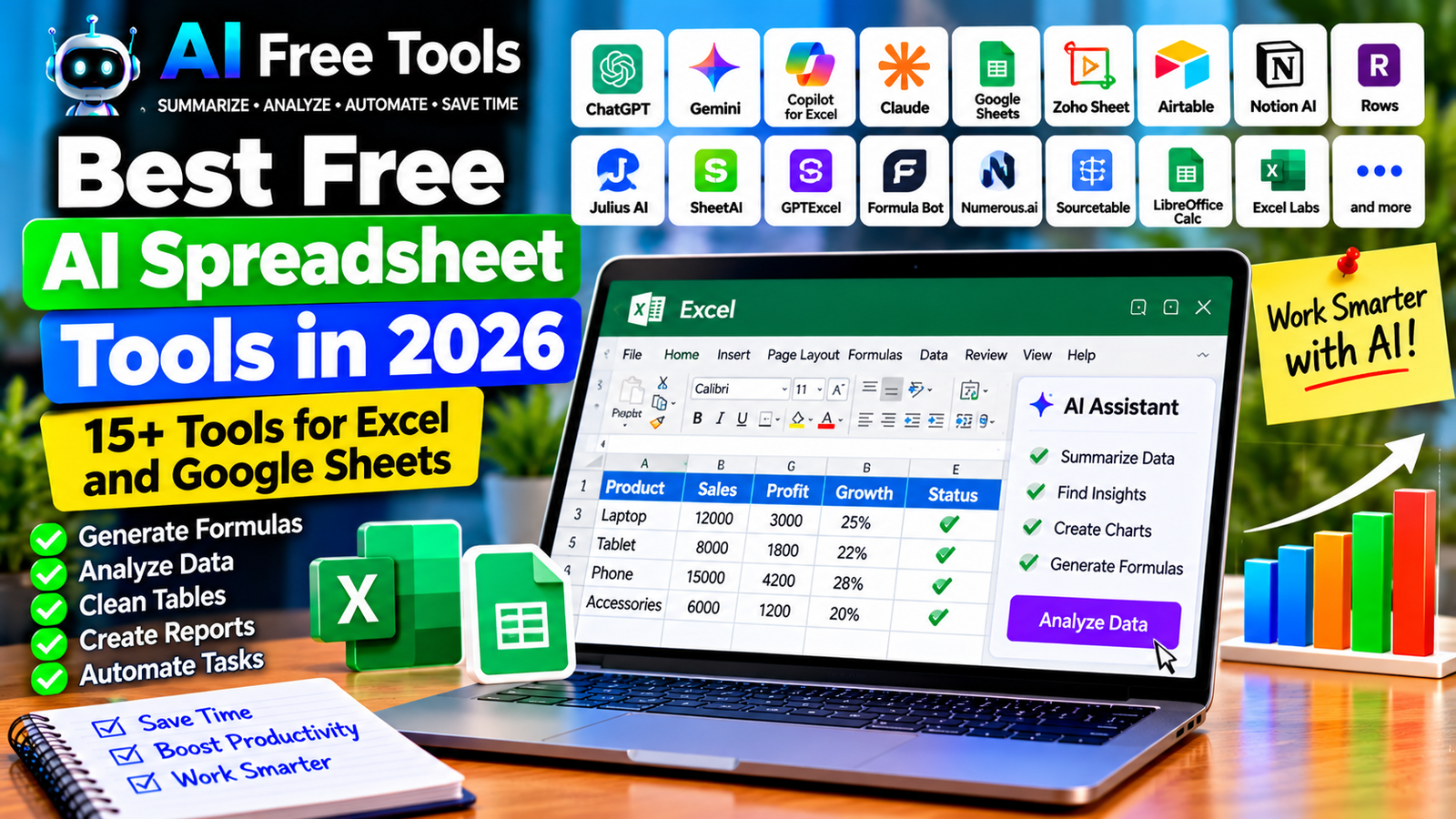
Best Free AI Spreadsheet Tools in 2026: 15+ Tools for Excel and Google Sheets
Free AI spreadsheet tools can help you write formulas, clean messy data, identify trends, create reports, and automate repetitive tasks in Excel and Google Sheets. Instead of spending hours trying to understand a complicated formula or manually reviewing thousands of rows, you can use AI to speed up common spreadsheet workflows.
These tools can be useful for small business owners, accountants, marketers, students, freelancers, and data analysts. Some generate formulas from plain-language instructions, while others analyze uploaded files, create charts, explain data, or add AI features directly to a spreadsheet.
In this guide, we compare 17 AI assistants, spreadsheet applications, and spreadsheet-related tools in 2026. You will discover which options are worth exploring, what their free access may include, and how to choose a tool for your needs.
Important: Not every tool listed here is a dedicated AI spreadsheet application. Some are general-purpose AI assistants, spreadsheet editors, or add-ons that support spreadsheet work. Free plans, integrations, AI credits, and supported file sizes can change. Always verify current pricing and features before uploading large files or relying on a tool for business-critical calculations.
Quick Comparison: Best Free AI Spreadsheet Tools
| Tool | Best For | Free Access |
|---|---|---|
| ChatGPT | Formula generation and data explanations | Free tier with limits |
| Google Gemini | Spreadsheet assistance and data analysis | Free tier with limits |
| Microsoft Copilot for Excel | Working with Excel data | Depends on eligible plan |
| Claude | Analyzing tables and structured data | Free tier with limits |
| Google Sheets | Online spreadsheets and collaboration | Core features generally free |
| Numerous.ai | AI functions in spreadsheets | Free access and limits may vary |
| GPTExcel | Generating and explaining spreadsheet formulas | Free access with possible limits |
| Formula Bot | Formulas and data-related tasks | Free access or limits vary |
| Ajelix | Spreadsheet formulas and analytics | Free access and plan limits vary |
| Rows | Spreadsheets with data integrations and AI features | Free plan or usage limits may apply |
| Julius AI | Data analysis and visualizations | Free tier with limits |
| Sourcetable | Spreadsheet-style data analysis | Current free access should be checked |
| SheetAI | AI functions in Google Sheets | Free usage or paid plans may apply |
| Excel Labs | Experimental Excel productivity features | Availability depends on current Microsoft support |
| Zoho Sheet | Online spreadsheets and collaboration | Free features available |
| Airtable AI | Structured data and workflow assistance | AI access depends on plan |
| LibreOffice Calc | Free desktop spreadsheet editing | Core software is free; AI is not built in |
1. ChatGPT — Best for Spreadsheet Formulas and Data Explanations
ChatGPT can help you create Excel and Google Sheets formulas, troubleshoot errors, explain unfamiliar functions, and interpret tables. You can describe what you want in ordinary language rather than memorizing formula syntax.
For example, you can ask it to calculate profit margins, classify expenses, compare monthly sales, or explain why a formula returns an error.
Best features:
- Generate Excel and Google Sheets formulas.
- Explain formulas step by step.
- Help clean and organize data.
- Suggest charts and summaries.
- Analyze supported uploaded files and tables.
Free access: ChatGPT offers a free tier with usage and feature limits. File uploads and advanced analysis may be restricted.
Best for: Business owners, students, freelancers, and people who need help with spreadsheet tasks.
Official website: https://chatgpt.com/
Example prompt:
“I use Microsoft Excel. Column A contains product names, column B contains purchase prices, and column C contains selling prices. Give me a formula to calculate the profit margin in column D. Explain the formula and tell me how to handle rows where the selling price is blank or zero.”
2. Google Gemini — Best for Spreadsheet Assistance
Google Gemini can help explain formulas, organize data, suggest calculations, and analyze information. Depending on your account and current integrations, it may also assist with Google Workspace tasks.
You can use it to plan a spreadsheet structure, create formulas, or understand patterns in a dataset before implementing the result in Google Sheets.
Best features:
- Generate spreadsheet formulas.
- Explain functions and calculations.
- Suggest ways to organize tables.
- Help interpret data and trends.
- Support eligible Google Workspace workflows.
Free access: Gemini offers a free tier with usage limits. Direct integrations and advanced features depend on the current account and plan.
Best for: Google Sheets users, students, and small businesses.
Official website: https://gemini.google.com/
3. Microsoft Copilot for Excel — Best for Microsoft Excel Users
Microsoft Copilot can assist with spreadsheet analysis and formula-related tasks in eligible Microsoft 365 environments. Depending on the available version and subscription, it may help users understand data, identify trends, or work with tables.
Best features to investigate:
- Help analyze spreadsheet data.
- Explain calculations and formulas.
- Identify trends and patterns.
- Support data-related questions in natural language.
- Assist with eligible Excel workflows.
Free access: Copilot capabilities in Excel depend on the current Microsoft 365 subscription, license, application version, and account settings. Do not assume that all AI features are included in free Excel access.
Best for: Businesses and professionals who already use Microsoft Excel.
Official website: https://www.microsoft.com/microsoft-365/excel
4. Claude — Best for Analyzing Tables and Structured Data
Claude can help interpret pasted tables, explain calculations, generate formulas, and summarize structured information. It can be useful when you need to understand what a dataset contains before deciding which calculations or visualizations to create.
Best features:
- Explain spreadsheet logic.
- Generate formulas and data transformations.
- Summarize tables.
- Help identify inconsistencies.
- Analyze supported uploaded files.
Free access: Claude offers a free tier with usage limits. File support and analysis capabilities depend on current account features.
Best for: Analysts, researchers, and professionals working with complex tables.
Official website: https://claude.ai/
5. Google Sheets — Best for Free Online Spreadsheets
Google Sheets is a browser-based spreadsheet application with collaboration, formulas, charts, and data-management features. It is not entirely an AI product, but it can serve as the foundation for an AI-assisted spreadsheet workflow.
You can use an AI assistant to generate formulas and then apply them in Sheets.
Best features:
- Create and edit spreadsheets online.
- Collaborate with other users.
- Use built-in formulas and functions.
- Create charts and pivot tables.
- Explore eligible AI-assisted features.
Free access: Core Google Sheets features are generally available with a Google account. Gemini-related features may require an eligible plan.
Best for: Students, small businesses, and teams that need collaborative spreadsheets.
Official website: https://sheets.google.com/
6. Numerous.ai — Best for AI Functions Inside Spreadsheets
Numerous.ai has offered AI-assisted functions for spreadsheet workflows, allowing users to apply AI to text and data tasks within supported spreadsheet applications.
Potential uses include classifying product descriptions, extracting information from text, summarizing feedback, and generating content for spreadsheet cells.
Best features to investigate:
- Apply AI to text in spreadsheet cells.
- Classify and extract information.
- Generate structured text outputs.
- Process repetitive content tasks.
- Check supported spreadsheet integrations.
Free access: Availability, usage limits, integrations, and pricing can change. Verify the current offer before building a large workflow around the service.
Best for: Marketers, e-commerce businesses, and users processing large amounts of text in spreadsheets.
Official website: https://numerous.ai/
7. GPTExcel — Best for Generating Spreadsheet Formulas
GPTExcel focuses on spreadsheet-related AI assistance, including formula generation and explanations. It can be helpful when you know the result you want but do not know the correct Excel or Google Sheets syntax.
Best features to investigate:
- Generate formulas from plain-language descriptions.
- Explain existing formulas.
- Help with spreadsheet-related scripts where supported.
- Explore data-related assistance.
- Reduce time spent troubleshooting formulas.
Free access: Free usage may be limited by credits, daily quotas, or available features. Check current limits before relying on it for frequent work.
Best for: Excel users, students, and professionals who frequently create formulas.
Official website: https://gptexcel.uk/
8. Formula Bot — Best for Spreadsheet Formulas and Data Tasks
Formula Bot has offered tools for generating formulas and working with spreadsheet data through natural-language instructions. It is worth investigating if you regularly need help converting business rules into formulas.
Best features to investigate:
- Generate Excel and Google Sheets formulas.
- Explain formula logic.
- Help transform data.
- Support selected data-analysis workflows.
- Explore available file and spreadsheet functions.
Free access: Free access, usage allowances, and supported features may change. Confirm the current plan before processing large datasets.
Best for: Small business owners, analysts, and people who want formula assistance without writing code.
Official website: https://www.formulabot.com/
9. Ajelix — Best for Spreadsheet Productivity
Ajelix offers spreadsheet-related tools that can assist with formulas, data analysis, and other spreadsheet tasks. Depending on the current product features, it may also support workflows involving scripts, dashboards, or business reporting.
Best features to investigate:
- Generate and explain spreadsheet formulas.
- Explore data-analysis assistance.
- Work with supported spreadsheet scripts.
- Help structure reports and dashboards.
- Reduce repetitive spreadsheet work.
Free access: Ajelix offers access options with possible limits on AI usage and advanced features. Verify the current pricing and supported integrations.
Best for: Professionals who work regularly with Excel and business reports.
Official website: https://ajelix.com/
10. Rows — Best for Data Integrations and AI-Assisted Spreadsheets
Rows combines spreadsheet-style data organization with integrations and AI-related capabilities. It can be useful when your spreadsheet needs to connect with external data sources or support recurring reporting tasks.
Best features to investigate:
- Organize data in spreadsheet tables.
- Explore supported data integrations.
- Generate reports and visualizations.
- Use available AI assistance.
- Build repeatable data workflows.
Free access: Rows offers access options with plan-dependent restrictions. Check current limits for integrations, AI usage, and data refreshes.
Best for: Startups, marketers, analysts, and teams that combine spreadsheet data with external sources.
Official website: https://rows.com/
11. Julius AI — Best for Data Analysis and Visualizations
Julius AI is a data-analysis assistant that can help users explore datasets, ask questions about data, and generate visualizations through supported workflows.
It is useful when you need more than a formula—for example, when you want to understand changes in monthly sales or identify patterns in a table.
Best features:
- Analyze supported datasets.
- Ask questions about data in natural language.
- Create charts and visualizations.
- Summarize findings.
- Support selected file formats and analysis workflows.
Free access: Julius AI offers access options with usage limits. File sizes, AI requests, and advanced features may depend on the current plan.
Best for: Analysts, students, researchers, and business users.
Official website: https://julius.ai/
12. Sourcetable — Best for Spreadsheet-Style Data Analysis
Sourcetable has focused on combining spreadsheet workflows with data connections and AI-assisted analysis. It may be useful when you need to work with information from multiple sources in a spreadsheet-style environment.
Best features to investigate:
- Organize data in spreadsheet-style tables.
- Explore supported data connections.
- Ask questions about datasets.
- Generate summaries or reports through available features.
- Review current integration options.
Free access: Current availability and pricing should be checked directly because plans and features can change.
Best for: Business analysts and teams that need to combine spreadsheet work with data sources.
Official website: https://sourcetable.com/
13. SheetAI — Best for AI Functions in Google Sheets
SheetAI has offered AI-assisted functions designed for spreadsheet workflows, particularly Google Sheets. Depending on the current version and plan, it may help users generate content, classify text, or extract information directly into cells.
Best features to investigate:
- Apply AI functions to spreadsheet data.
- Generate or classify text.
- Extract structured information.
- Process repeated cell-level tasks.
- Check supported formulas and integrations.
Free access: Free usage and feature limits may apply. Verify the current integration requirements, credit system, and pricing before using it at scale.
Best for: Google Sheets users who want to automate repetitive text-related work.
Official website: https://www.sheetai.app/
14. Excel Labs — Best for Exploring Advanced Excel Features
Excel Labs is an experimental add-in associated with Microsoft Excel that has provided access to advanced spreadsheet capabilities. It is not a general-purpose AI spreadsheet service, and its availability and features can change.
Best features to investigate:
- Explore experimental Excel capabilities.
- Review supported advanced formula features.
- Test available productivity improvements.
- Check compatibility with your Excel version.
- Consult current Microsoft documentation.
Free access: Availability depends on current Microsoft support and compatibility. Confirm whether the add-in is still available for your environment before relying on it.
Best for: Advanced Excel users who want to explore additional spreadsheet functionality.
Official information: https://www.microsoft.com/
15. Zoho Sheet — Best for Online Spreadsheet Collaboration
Zoho Sheet is an online spreadsheet application with formulas, charts, collaboration, and data-management features. It can serve as a free or low-cost spreadsheet environment, with AI-related capabilities depending on the current product offering.
Best features:
- Create and edit spreadsheets online.
- Collaborate with colleagues.
- Use formulas and charts.
- Organize and filter data.
- Explore eligible automation and AI features.
Free access: Zoho Sheet provides spreadsheet functionality with free access options. Some integrations or advanced business capabilities may depend on the current plan.
Best for: Small businesses, remote teams, and users seeking an alternative to Excel or Google Sheets.
Official website: https://www.zoho.com/sheet/
16. Airtable AI — Best for Structured Data and Workflows
Airtable combines spreadsheet-like tables with databases, forms, and workflow automation. Its AI capabilities can help with supported tasks such as summarizing records, categorizing information, or generating content in a structured workflow.
Best features to investigate:
- Organize structured information.
- Create linked records and views.
- Build forms and workflow automations.
- Explore AI-assisted record processing.
- Connect data with supported applications.
Free access: Airtable has offered a free plan, but AI features and usage limits depend on the current subscription and product terms.
Best for: Teams managing products, customers, content calendars, and operational data.
Official website: https://www.airtable.com/
17. LibreOffice Calc — Best Free Desktop Spreadsheet Editor
LibreOffice Calc is a free, open-source spreadsheet application. It is not an AI assistant by itself, but it can be used with AI-generated formulas and data-processing instructions.
For example, you can ask ChatGPT to create a formula, copy the result into Calc, and then check whether it works with your data.
Best features:
- Create and edit spreadsheets offline.
- Use formulas and functions.
- Sort and filter tables.
- Build charts and reports.
- Open and save supported spreadsheet formats.
Free access: LibreOffice is free to download and use. Some advanced Excel features and formatting may behave differently when exchanging files.
Best for: Individuals and small businesses that want spreadsheet software without a recurring subscription.
Official website: https://www.libreoffice.org/
How to Choose the Best Free AI Spreadsheet Tool
The best choice depends on the task you want to automate and the spreadsheet application you already use.
| Your Main Goal | Recommended Starting Tools |
|---|---|
| Generate Excel formulas | ChatGPT, GPTExcel, or Formula Bot |
| Generate Google Sheets formulas | ChatGPT, Gemini, or SheetAI |
| Analyze a dataset | Julius AI, Claude, or ChatGPT |
| Automate text processing in cells | Numerous.ai or SheetAI |
| Create connected data reports | Rows or Sourcetable |
| Collaborate online | Google Sheets or Zoho Sheet |
| Organize records and workflows | Airtable |
| Work offline for free | LibreOffice Calc |
| Use AI inside Microsoft Excel | Check eligible Copilot features |
Best Free AI Spreadsheet Tools for Small Businesses
Small businesses often use spreadsheets to track sales, purchases, expenses, inventory, and profit margins. AI can help generate formulas, clean inconsistent product names, classify transactions, and summarize monthly performance.
Start with the spreadsheet application you already use. If you work in Excel, explore formula assistance through ChatGPT or dedicated formula tools. If you use Google Sheets, compare Gemini and relevant spreadsheet add-ons.
Before automating a business process, test the output on a small sample and compare it with a manual calculation.
Best AI Spreadsheet Tools for E-Commerce
Online sellers can use spreadsheets to manage product catalogs, prices, stock levels, supplier information, and sales reports.
AI assistants can help standardize product descriptions, classify categories, identify missing fields, and generate formulas for margins or inventory alerts. Dedicated spreadsheet AI add-ons may be useful when you need to repeat the same operation across hundreds of rows.
For pricing, inventory, and purchasing decisions, verify the calculations before importing changes into your store. An incorrect formula can affect many products at once.
Best AI Spreadsheet Tools for Data Analysis
If your main goal is to discover trends rather than simply generate formulas, consider a tool that can analyze tables and create visualizations.
Julius AI, ChatGPT, Claude, and other data-analysis assistants may help identify patterns, compare periods, and propose charts. For recurring reports, spreadsheet platforms with data connections may save more time than a standalone chat assistant.
Always check the source data, missing values, and calculation assumptions before relying on an AI-generated conclusion.
How to Use AI in Excel or Google Sheets in Five Steps
Step 1: Define the Desired Result
Explain what you want to calculate or transform. For example, you may want to calculate gross profit, identify duplicate products, group sales by month, or flag low-stock items.
Step 2: Describe Your Columns
Tell the AI which column contains each value, whether the first row contains headers, and how blank cells should be handled. This reduces ambiguity.
Step 3: Request a Formula or Transformation
Ask for the exact formula, where to place it, and whether it should be copied down the entire column. If you use a regional spreadsheet setting, mention the required argument separator.
Step 4: Test the Result
Use a few known examples and compare the AI-generated output with a manual calculation. Check blanks, zero values, duplicates, dates, and unusual records.
Step 5: Apply It to the Full Dataset
Once the formula or transformation works correctly, apply it to the larger dataset. Keep a backup of important data before performing bulk changes.
Example AI Prompt for Excel and Google Sheets
Copy and adapt this prompt:
“I use [EXCEL / GOOGLE SHEETS / LIBREOFFICE CALC]. My spreadsheet contains these columns: [DESCRIBE COLUMNS]. I want to [DESCRIBE THE TASK]. Give me the exact formula or steps, explain where to enter them, and identify any assumptions. Handle blank cells and zero values safely. Include a small example so I can verify the result before applying it to my full dataset.”
Are Free AI Spreadsheet Tools Worth Using?
Yes. They can save time on repetitive spreadsheet tasks, make complex formulas easier to understand, and help turn raw data into useful reports.
For formulas, start with ChatGPT or a dedicated formula tool such as GPTExcel. For data analysis, compare Julius AI, Claude, and ChatGPT. For online collaboration, explore Google Sheets or Zoho Sheet. For structured business workflows, investigate Airtable and other platforms with relevant integrations.
However, AI-generated formulas can be wrong, and data-analysis tools can misunderstand column meanings or overlook missing values. Test important calculations before using the results for accounting, pricing, payroll, or business decisions.
Are AI Spreadsheet Tools Safe for Business Data?
Spreadsheet files can contain customer details, supplier prices, payroll information, financial records, and other confidential data. Before uploading a file to an AI service, review its privacy policy, retention practices, and data-use terms.
Remove unnecessary personal information and use organization-approved tools for sensitive records. If you connect a spreadsheet to an external service, check which data it can access and whether the integration can modify your original files.
Frequently Asked Questions
What is the best free AI spreadsheet tool in 2026?
The best option depends on the task. ChatGPT and Gemini can help with formulas and explanations, GPTExcel and Formula Bot focus on spreadsheet assistance, and Julius AI can help analyze datasets. Check current free-plan limits before choosing.
Can AI write Excel formulas for me?
Yes. AI assistants can generate formulas from plain-language instructions. Describe your columns, desired result, and how blanks or errors should be handled, then test the formula on known examples.
Can AI analyze a Google Sheets file?
AI assistants and spreadsheet integrations may support file analysis or direct workflows, depending on the tool and account. You can also export a copy in a supported format and upload it to an eligible analysis tool.
Are AI spreadsheet tools free?
Some offer free plans, while others provide limited credits, trials, or paid integrations. Check usage quotas, file limits, and subscription requirements before choosing a tool for regular work.
Can AI clean a large Excel dataset?
AI can suggest cleaning rules and transformations, and some tools can process supported files. Test the rules on a sample first, preserve the original data, and verify the results before applying changes to thousands of rows.
Can AI create charts and dashboards from spreadsheet data?
Some AI assistants and data-analysis platforms can suggest or generate charts from supported data. The exact capabilities depend on the tool and plan. Verify labels, calculations, and chart interpretations before sharing the results.
Is AI reliable for accounting and financial calculations?
AI can assist with formulas and explanations, but it should not replace verification. Check formulas against known examples and use qualified review when calculations affect taxes, accounting records, payroll, or major financial decisions.
Final Verdict
The best free AI spreadsheet tools in 2026 can help you generate formulas, clean data, analyze tables, and automate repetitive tasks.
For general spreadsheet assistance, start with ChatGPT or Google Gemini. For formula generation, explore GPTExcel or Formula Bot. For data analysis, investigate Julius AI. For online collaboration, compare Google Sheets and Zoho Sheet. For structured workflows, consider Airtable, and for free offline spreadsheet editing, LibreOffice Calc is a practical option.
Choose a tool that fits your current workflow, verify its free-plan limits, and test every important calculation before relying on the result.
Explore more guides on AI Free Tools:
Leave a Reply