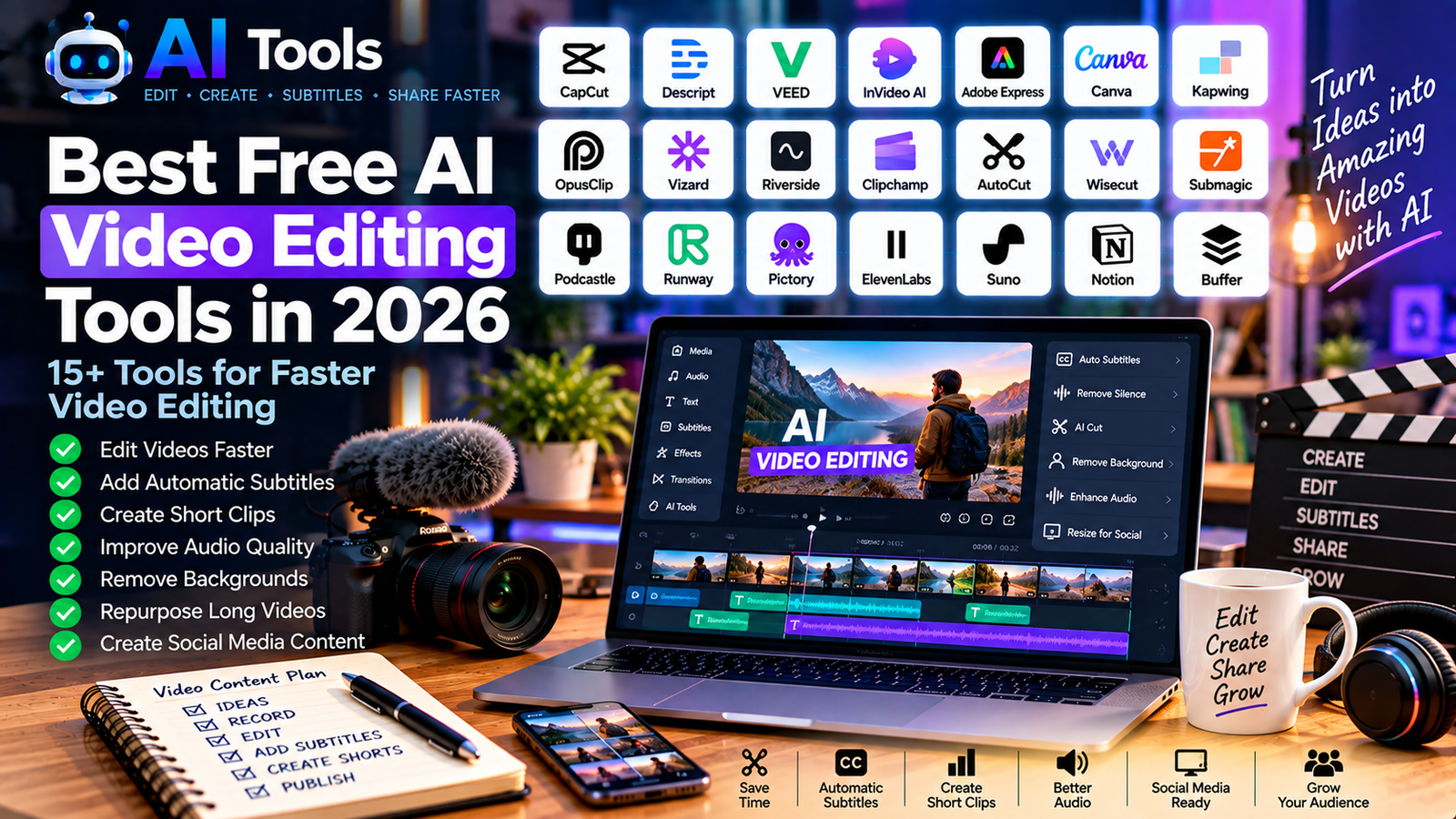
Best Free AI Video Editing Tools in 2026
Video editing can take hours, especially when you need to cut footage, add subtitles, remove unwanted sections, create short clips and prepare content for multiple social media platforms.
AI-powered video editing tools can automate many of these repetitive tasks.
In this guide, we have selected 15+ free AI video editing tools in 2026 that can help creators, marketers, YouTubers, businesses and beginners edit videos faster.
These tools cover automatic captions, video editing, short-form content, audio cleanup, repurposing, subtitles and social media videos.
If you are looking for tools that actually generate videos with AI, rather than edit existing footage, see our guide to free AI video generators.
What Are AI Video Editing Tools?
AI video editing tools use artificial intelligence to automate or simplify parts of the video production process.
Depending on the platform, AI can help you:
- Automatically create subtitles
- Remove silences
- Detect scenes
- Cut videos
- Generate short clips
- Clean audio
- Remove backgrounds
- Resize videos
- Repurpose long videos
- Generate captions
- Create social media content
- Edit videos using text
- Improve speech quality
The exact features available depend on the platform and its current free plan.
1. CapCut
Best for: Social media video editing
CapCut is one of the most accessible video editing platforms for creators.
It provides traditional editing tools alongside AI-powered features that can simplify captions, effects, background removal and other tasks.
Best uses:
- TikTok videos
- YouTube Shorts
- Instagram Reels
- Captions
- Social media videos
- Quick video editing
CapCut is particularly useful for beginners who want to create short-form content without learning a complicated professional editing application.
2. Descript
Best for: Editing videos through text
Descript takes a different approach to video editing.
It creates a transcript of your recording and lets you edit the video by editing the text.
This can be particularly useful for interviews, podcasts, tutorials and talking-head videos.
Best uses:
- Podcasts
- Interviews
- YouTube videos
- Transcription
- Removing unwanted sections
- Text-based video editing
Instead of searching manually through a timeline, you can often find and edit spoken content directly in the transcript.
3. VEED
Best for: Online video editing
VEED is a browser-based video editor designed for creators and businesses.
It includes tools for editing, subtitles, social media content and other video-production tasks.
Best uses:
- Social media videos
- Subtitles
- Marketing videos
- YouTube content
- Short videos
- Browser-based editing
Its online workflow means you can work on projects without installing a large desktop application.
4. InVideo AI
Best for: Creating and editing social videos
InVideo combines AI-assisted content creation with video editing tools.
It can help creators transform ideas and scripts into video content and then make further edits.
Best uses:
- Social media videos
- Marketing videos
- Explainer videos
- YouTube content
- Promotional videos
- Short-form content
Free access may include restrictions such as generation limits or watermarks, so check the current plan before publishing commercial content.
5. Adobe Express
Best for: Quick video and social content
Adobe Express provides simple tools for creating and editing videos and social media content.
It is designed for users who want a faster workflow than traditional professional video-editing software.
Best uses:
- Social media videos
- Promotional videos
- Short clips
- Reels
- Marketing content
- Simple video editing
It can be especially useful when video editing is only one part of a broader content-production workflow.
6. Canva
Best for: Simple video editing and social media content
Canva is primarily known as a design platform, but it also provides video-editing capabilities.
Creators can combine video clips, images, text, animations and audio in the same project.
Best uses:
- Instagram Reels
- YouTube Shorts
- Social media videos
- Presentations
- Marketing videos
- Video graphics
Canva is particularly convenient when your content strategy combines static images and video.
7. Kapwing
Best for: Browser-based collaborative editing
Kapwing is an online creative platform that provides video-editing and AI-assisted content tools.
It can be useful for creators who need captions, resizing, transcription and social-media-ready content.
Best uses:
- Subtitles
- Social media videos
- Video resizing
- Short clips
- Collaborative editing
- Content repurposing
Its browser-based approach makes it accessible from different devices.
8. OpusClip
Best for: Turning long videos into short clips
OpusClip focuses on transforming long-form videos into shorter clips suitable for social media.
This can save creators significant time when repurposing podcasts, interviews, webinars or long YouTube videos.
Best uses:
- YouTube Shorts
- Instagram Reels
- TikTok
- Podcast clips
- Webinar clips
- Content repurposing
The free plan can have usage limits, so check the current pricing before processing large amounts of video.
9. Vizard
Best for: Repurposing long videos
Vizard provides AI-powered tools for turning longer videos into shorter social media clips.
It can identify sections of a video that may work as individual short-form pieces.
Best uses:
- Social clips
- Podcasts
- Interviews
- Webinars
- YouTube content
- Short-form videos
This makes it useful for creators who want to publish more content without recording a completely new video for every post.
10. Riverside
Best for: Podcasts and remote video recording
Riverside combines recording and content-production tools.
It is particularly useful for podcasts, interviews and remote conversations.
Best uses:
- Podcasts
- Interviews
- Remote recording
- Video content
- Transcription
- Short clips
Creators can record longer conversations and then repurpose them into shorter pieces of content.
11. Clipchamp
Best for: Beginner-friendly video editing
Clipchamp is Microsoft’s video-editing platform.
It provides accessible editing tools for creating videos and social media content.
Best uses:
- Basic video editing
- Screen recordings
- Social media videos
- Presentations
- Short videos
- Windows workflows
It can be a practical option for beginners who want straightforward video editing.
12. AutoCut
Best for: Automating repetitive editing
AutoCut provides AI-assisted tools designed to speed up repetitive video-editing tasks.
Depending on the current version and workflow, creators can use automated editing features to reduce manual work.
Best uses:
- Short-form videos
- Talking-head videos
- Social content
- Automatic editing
- Repetitive editing tasks
Always check the current supported software and free-plan limitations before starting a project.
13. Wisecut
Best for: Automatic editing of talking videos
Wisecut is designed to simplify video editing by automatically detecting silences and helping structure video content.
This can be useful for creators producing talking-head videos and educational content.
Best uses:
- Tutorials
- Educational videos
- Talking-head content
- YouTube videos
- Automatic cuts
- Subtitles
It can reduce the amount of manual timeline editing required.
14. Submagic
Best for: Captions and short-form videos
Submagic focuses heavily on captions and short-form video content.
Creators can use it to make spoken content easier to consume on platforms where viewers frequently watch videos without sound.
Best uses:
- Captions
- TikTok
- Reels
- YouTube Shorts
- Short-form content
- Social videos
For creators who rely heavily on short videos, captions can be an important part of the editing workflow.
15. Podcastle
Best for: Podcast and audio-video production
Podcastle provides tools for creating and editing podcasts and other audio/video content.
It can help creators work with recordings, transcriptions and audio production.
Best uses:
- Podcasts
- Interviews
- Voice recordings
- Transcription
- Audio editing
- Video podcasts
It can be particularly useful for creators producing both audio and video versions of the same content.
16. Runway
Best for: Advanced AI video workflows
Runway combines video editing and generative AI features.
It is aimed at creators who want to experiment with more advanced AI-powered visual workflows.
Best uses:
- Creative video editing
- AI effects
- Background manipulation
- Visual experiments
- Generative video workflows
- Creative projects
Free access and available credits can change, so check the current plan before starting a large project.
17. Pictory
Best for: Turning text into video content
Pictory focuses on helping users transform written content and longer material into videos.
This can be useful for marketers, bloggers and businesses that want to turn existing content into video.
Best uses:
- Blog-to-video
- Marketing videos
- Social media content
- Educational videos
- Content repurposing
- Short videos
It can help bridge the gap between written content and video content.
AI Video Editing Tools by Use Case
Best for short-form videos
Consider:
- CapCut
- OpusClip
- Vizard
- Submagic
- VEED
Best for podcasts
Consider:
- Descript
- Riverside
- Podcastle
- OpusClip
Best for beginners
Consider:
- CapCut
- Canva
- Clipchamp
- Adobe Express
Best for captions
Consider:
- CapCut
- Submagic
- VEED
- Descript
Best for repurposing content
Consider:
- OpusClip
- Vizard
- Pictory
- Descript
Best for advanced AI video workflows
Consider:
- Runway
- Descript
- InVideo AI
AI Video Editing Workflow for Beginners
You don’t need expensive professional software to start creating videos.
A simple workflow can look like this:
Step 1 — Record
Record your video using a smartphone, webcam or camera.
Step 2 — Import
Upload the footage to your chosen editor.
Step 3 — Remove unwanted parts
Use automatic or manual editing to remove mistakes, long pauses and unnecessary sections.
Step 4 — Add captions
Generate automatic subtitles and correct any mistakes.
Step 5 — Improve the visual presentation
Add:
- Titles
- Graphics
- Images
- Transitions
- Background music
Step 6 — Create short clips
If you have a long video, use an AI clipping tool to find potential short-form segments.
Step 7 — Resize
Prepare different versions for:
- YouTube
- TikTok
Step 8 — Review
Watch the entire video before publishing.
Check captions, audio, transitions and visual elements.
How AI Can Save Time in Video Editing
Traditional video editing often involves many repetitive operations.
AI can automate some of them.
For example:
Manual process
Watch → Find silence → Cut → Add subtitles → Resize → Export
AI-assisted process
Upload → Automatic transcription → AI cuts → Automatic captions → Resize → Review → Export
The AI workflow is not always perfect, but it can significantly reduce repetitive editing.
AI Video Editing for YouTubers
YouTubers can use AI tools for:
- Editing
- Captions
- Thumbnails
- Short clips
- Audio cleanup
- Transcription
- Video descriptions
- Content repurposing
A long YouTube video can also become several Shorts, Reels and other social-media clips.
For tools that generate video rather than edit existing footage, see our article on free AI video generators.
AI Video Editing for Social Media
Short-form platforms require a different editing style from long-form YouTube videos.
Creators often need:
- Fast introductions
- Captions
- Vertical video
- Short scenes
- Strong visual hooks
- Clear audio
- Quick transitions
Tools such as CapCut, OpusClip, Vizard and Submagic can help creators produce this type of content faster.
How to Choose a Free AI Video Editor
Before choosing a tool, consider:
1. Watermarks
Some free plans add a watermark to exported videos.
2. Export quality
Check whether the free plan supports the resolution you need.
3. AI limits
AI features may have daily or monthly limits.
4. Video length
Some platforms limit the duration of videos that can be processed.
5. Captions
If you create short-form content, automatic captions can be particularly valuable.
6. Supported formats
Make sure the tool supports the video formats and aspect ratios you use.
7. Commercial use
Check the current licensing terms if you create content for clients or businesses.
Are Free AI Video Editors Good Enough?
For many beginners and creators, free plans can be enough to start.
They can provide access to:
- Basic editing
- Captions
- Templates
- AI-assisted features
- Short-form editing
- Content repurposing
However, free plans may include:
- Watermarks
- Export limits
- AI credit limits
- Lower resolution
- Limited storage
- Fewer advanced features
If a creator eventually needs more capacity, upgrading can be considered based on actual usage.
Frequently Asked Questions
What are the best free AI video editing tools?
Different tools specialize in different tasks. CapCut is useful for short-form editing, Descript for text-based editing, OpusClip and Vizard for repurposing long videos, and tools such as VEED and Canva for accessible online editing.
Can AI edit videos automatically?
Yes. Some AI editors can automatically detect silences, create captions, identify clips and perform other repetitive editing tasks.
Can AI turn a long video into Shorts?
Yes. Tools such as OpusClip and Vizard are designed specifically for repurposing longer videos into shorter clips.
Can AI generate subtitles?
Yes. Many modern video editors can automatically transcribe speech and generate subtitles.
Can I edit videos for free with AI?
Yes. Several platforms offer free plans or free access to certain AI video-editing features, although usage limits may apply.
Are AI video editors suitable for YouTube?
Yes. They can help with editing, captions, short clips and content repurposing. For complex professional productions, traditional editing software may still be preferable.
Final Thoughts
AI video editing is making video production more accessible.
Creators no longer need to perform every repetitive editing task manually. Automatic captions, transcription, clipping, resizing and content repurposing can save significant time.
The best workflow depends on what you create.
If you produce short social-media videos, focus on fast editing and captions. If you produce podcasts or interviews, transcription and automatic clipping may be more valuable. If you create YouTube videos, look for tools that combine editing, subtitles and content repurposing.
Start with a free tool, learn its workflow and upgrade only when you actually need additional features.
For video generation rather than editing, explore our guide to free AI video generators.
Leave a Reply