
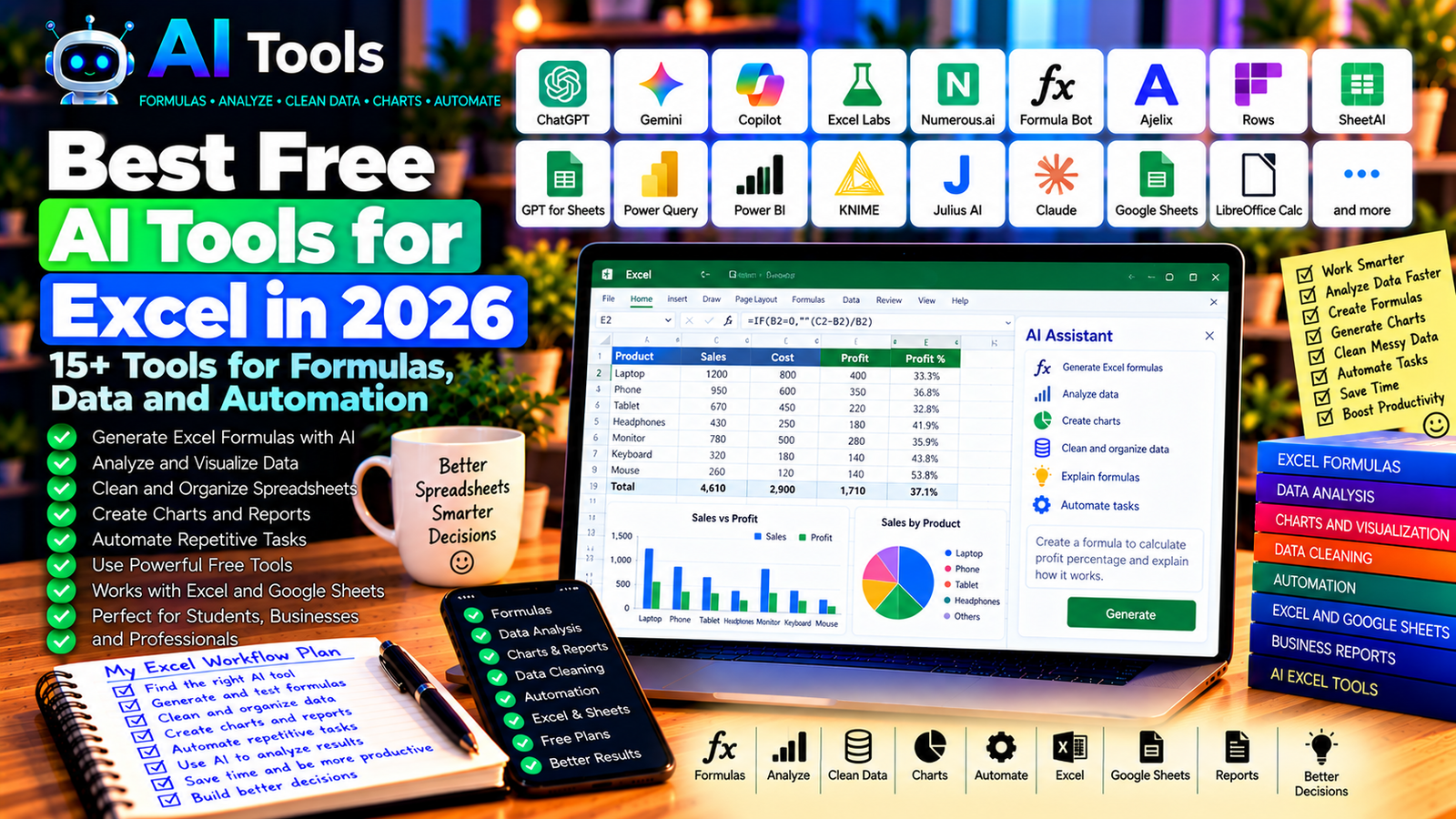
Best Free AI Tools for Excel in 2026: 15+ Tools for Formulas, Data and Automation
Microsoft Excel is one of the most widely used tools for managing business data, budgets, sales reports, inventory, and financial calculations. However, creating formulas, cleaning spreadsheets, analyzing large datasets, and building charts can take considerable time.
Free AI tools for Excel can make these tasks easier. They can help you write formulas, explain spreadsheet errors, summarize data, identify patterns, generate charts, and automate repetitive work.
You do not always need an expensive AI subscription to get started. Some tools provide free access to general-purpose AI assistants, while others offer spreadsheet-specific features with usage limits.
In this guide, we compare 17 AI assistants, spreadsheet tools, and related solutions in 2026. We explain what each tool does, where free access may be available, and how to choose the right option for your needs.
Important: Free plans, AI credits, integrations, and subscription requirements can change. Some tools work directly inside Excel, while others require you to copy formulas or upload a spreadsheet. Check the current official terms before choosing a tool.
Quick Comparison: Best Free AI Tools for Excel
| Tool | Best For | Free Access |
|---|---|---|
| ChatGPT | Writing and explaining Excel formulas | Free tier with limits |
| Google Gemini | Spreadsheet analysis and formula help | Free tier; integrations vary |
| Microsoft Copilot | AI assistance inside eligible Microsoft products | Features depend on plan |
| Claude | Analyzing supported spreadsheet files | Free tier with limits |
| Google Sheets with Gemini | AI-assisted spreadsheet workflows | Depends on account and plan |
| Excel Labs | Experimenting with advanced Excel functions | Availability and features vary |
| Numerous.ai | AI functions inside spreadsheets | Check current plan and limits |
| Formula Bot | Generating formulas and analyzing data | Free access and limits vary |
| Ajelix | Spreadsheet formulas and business analysis | Free access or trial terms may change |
| Rows | AI-assisted spreadsheet workflows | Free plan with restrictions |
| SheetAI | AI functions for Google Sheets | Free usage or paid plans may apply |
| GPT for Sheets and Docs | AI functions in Google Sheets | Usage limits and API costs may apply |
| Power Query | Data cleaning and transformation | Included in supported Excel versions |
| Power BI | Data analysis and visualization | Free desktop capabilities; sharing and AI vary |
| KNIME | Data preparation and analytics | Free open-source platform |
| Julius AI | Conversational data analysis | Free usage limits may apply |
| LibreOffice Calc | Free spreadsheet calculations | Free and open source; AI requires separate tools |
1. ChatGPT — Best for Writing and Explaining Excel Formulas
ChatGPT is a versatile AI assistant that can help you create Excel formulas, troubleshoot errors, write spreadsheet logic, and understand complicated calculations.
You can describe what you want to calculate in plain English instead of searching for the correct formula manually.
For example, you could ask it to calculate total sales by product, identify overdue invoices, calculate profit margins, or explain why a formula returns an error.
Best features:
- Generate Excel formulas from plain-language instructions.
- Explain formulas step by step.
- Help troubleshoot errors such as
#N/Aand#VALUE!. - Suggest ways to clean and organize data.
- Help write VBA or Office Scripts code, subject to your environment.
Free access: ChatGPT offers a free tier with usage and feature limits. Spreadsheet uploads and advanced analysis capabilities may have restrictions.
Best for: Business owners, accountants, students, analysts, and Excel beginners.
Official website: https://chatgpt.com/
Example prompt
“Write an Excel formula that calculates the profit margin in cell D2 using revenue in B2 and cost in C2. Return a blank if revenue is zero or missing, and explain how the formula works.”
Always test the formula against known results before using it in financial or business reports.
2. Google Gemini — Best for Spreadsheet Help and Data Analysis
Google Gemini can help explain spreadsheet formulas, suggest calculations, organize information, and analyze supported files.
It is especially useful if you already work with Google Sheets and other Google productivity tools. However, using the standalone Gemini assistant does not automatically provide every AI feature inside Google Sheets.
Best features:
- Generate spreadsheet formulas.
- Explain calculations and functions.
- Suggest ways to structure tables.
- Help interpret supported datasets.
- Generate ideas for charts and summaries.
Free access: Gemini offers a free tier with limits. Integrated Google Sheets features depend on the account, subscription, and current regional availability.
Best for: Google Sheets users, students, freelancers, and small businesses.
Official website: https://gemini.google.com/
3. Microsoft Copilot — Best for Eligible Excel AI Features
Microsoft Copilot can assist with spreadsheet tasks in eligible Microsoft products. Depending on your version and subscription, it may help users analyze tables, explain data, generate formulas, or identify trends.
It is important to distinguish general Copilot access from Copilot features integrated directly into Excel. The latter may require a qualifying Microsoft 365 subscription or additional licensing.
Best features to investigate:
- Analyze supported spreadsheet data.
- Generate formula suggestions.
- Summarize patterns and trends.
- Help explain calculations.
- Support eligible Microsoft 365 workflows.
Free access: Some Copilot experiences are available without payment, but advanced Excel integration may require a paid eligible plan.
Best for: Excel users, office workers, and businesses already using Microsoft 365.
Official website: https://www.microsoft.com/microsoft-copilot
4. Claude — Best for Understanding Complex Spreadsheet Data
Claude is a general-purpose AI assistant that can help interpret supported spreadsheet files, explain data, and suggest calculations or analytical approaches.
It can be useful when you need to understand a dataset before creating formulas or charts. For example, you might ask it to identify unusual values, summarize a table, or propose a method for comparing monthly sales.
Best features:
- Analyze supported uploaded files.
- Explain spreadsheet structures.
- Suggest formulas and calculations.
- Summarize patterns and potential anomalies.
- Help generate scripts for data processing.
Free access: Claude offers a free tier with usage limits. File handling and analysis features depend on current availability.
Best for: Analysts, researchers, students, and professionals working with complex information.
Official website: https://claude.ai/
5. Google Sheets with Gemini — Best for AI-Assisted Online Spreadsheets
Google Sheets is a collaborative spreadsheet application. Eligible Gemini-powered features may help users organize data, generate content, or complete supported spreadsheet tasks.
It is useful for teams that need to work on the same spreadsheet online, share updates, and collaborate on reports.
Best features to investigate:
- Assist with supported spreadsheet tasks.
- Help organize and interpret data.
- Generate content for supported workflows.
- Collaborate with other users in real time.
- Connect spreadsheet work with Google Workspace.
Free access: Core Google Sheets features are available free with a Google account. Gemini integration and advanced AI functions depend on the eligible plan and current feature availability.
Best for: Small businesses, students, remote teams, and users who prefer browser-based spreadsheets.
Official website: https://sheets.google.com/
6. Excel Labs — Best for Exploring Advanced Excel Functions
Excel Labs is an experimental Excel add-in associated with Microsoft’s Excel research and development work. It has included features for experimenting with advanced functions and spreadsheet workflows.
Because experimental add-ins can change or be discontinued, verify their current availability and compatibility before making them part of a business process.
Best features to investigate:
- Explore advanced Excel functions.
- Experiment with formula-related workflows.
- Test supported spreadsheet features.
- Learn about emerging Excel capabilities.
Free access: Availability and features depend on the current add-in and Microsoft environment. Do not assume that all previously documented features remain available.
Best for: Advanced Excel users, analysts, and people interested in new spreadsheet capabilities.
Official resource: https://techcommunity.microsoft.com/
7. Numerous.ai — Best for AI Functions in Spreadsheets
Numerous.ai has focused on bringing AI-powered functions into spreadsheet workflows, including tasks involving text classification, extraction, and content generation.
For example, a business could use spreadsheet-based AI to categorize customer feedback, summarize product descriptions, or standardize text fields.
Best features to investigate:
- Apply AI to spreadsheet text.
- Categorize rows of information.
- Extract selected details from text.
- Generate or rewrite spreadsheet content.
- Support repetitive data-processing tasks.
Free access: Check the official website for current pricing, free usage, supported spreadsheet applications, and limits.
Best for: Marketers, e-commerce businesses, researchers, and people processing large amounts of text in spreadsheets.
Official website: https://numerous.ai/
8. Formula Bot — Best for Generating Spreadsheet Formulas
Formula Bot is designed to help users work with spreadsheet formulas and data tasks through natural-language instructions.
It can be useful when you know what result you want but do not know which Excel function or formula to use.
Best features to investigate:
- Convert plain-language requests into formulas.
- Explain spreadsheet calculations.
- Help analyze supported data.
- Generate formula suggestions.
- Support Excel and Google Sheets workflows where available.
Free access: Free usage and paid features may change. Check the current plan before depending on it for regular work.
Best for: Excel beginners, students, accountants, and office workers.
Official website: https://www.formulabot.com/
9. Ajelix — Best for Spreadsheet Formulas and Business Analysis
Ajelix has offered AI-powered spreadsheet tools for formulas, data analysis, and related business tasks.
It may be useful when you want assistance with calculations, spreadsheet documentation, or repetitive analytical work.
Best features to investigate:
- Generate Excel and Google Sheets formulas.
- Explain calculations.
- Assist with spreadsheet analysis.
- Support formula-related productivity tasks.
- Explore available spreadsheet integrations.
Free access: Current free-plan availability, usage limits, and trial conditions should be checked on the official website.
Best for: Business users, analysts, accountants, and Excel beginners.
Official website: https://ajelix.com/
10. Rows — Best for AI-Assisted Spreadsheet Workflows
Rows is a modern spreadsheet platform designed to combine spreadsheet calculations with data integrations and other productivity features.
Depending on the current plan, it may provide AI-assisted analysis or workflows that connect spreadsheets with external information.
Best features to investigate:
- Create and organize spreadsheets.
- Work with formulas and structured data.
- Connect supported data sources.
- Use available AI features.
- Build reports and analytical workflows.
Free access: Rows offers plan-dependent access, with restrictions that may apply to AI features, integrations, or usage.
Best for: Startups, marketers, analysts, and teams working with business data.
Official website: https://rows.com/
11. SheetAI — Best for AI-Powered Google Sheets Tasks
SheetAI has focused on adding AI functions to Google Sheets, allowing users to apply AI to spreadsheet content.
Possible use cases include classifying product descriptions, generating text, summarizing customer feedback, and extracting information from cells.
Best features to investigate:
- Apply AI to text in spreadsheet cells.
- Generate or rewrite content.
- Categorize information.
- Extract selected details.
- Support repetitive text-processing workflows.
Free access: Verify current free usage, add-on availability, and any required API or subscription costs.
Best for: E-commerce sellers, marketers, researchers, and Google Sheets users.
Official website: https://www.sheetai.app/
12. GPT for Sheets and Docs — Best for AI Functions in Google Workspace
GPT for Sheets and Docs is associated with AI-powered functions and workflows for Google Sheets and Google Docs.
It can help users classify text, summarize rows, generate content, and process spreadsheet information. Costs may depend on the add-on, subscription, API provider, or usage model.
Best features to investigate:
- Generate text from spreadsheet values.
- Summarize or categorize data.
- Extract information from text fields.
- Apply AI functions across multiple rows.
- Support Google Sheets and Docs workflows.
Free access: Do not assume that installing an add-on makes all AI usage free. Check the current pricing, credits, and whether a separate API key or subscription is required.
Best for: Content teams, marketers, researchers, and users processing spreadsheet text.
Official website: https://gptforwork.com/
13. Power Query — Best for Cleaning and Transforming Excel Data
Power Query is a data preparation and transformation technology available in supported Microsoft products, including many versions of Excel.
It is not a generative AI assistant, but it can save substantial time by automating repetitive data-cleaning tasks.
For example, you can combine files, remove unwanted rows, standardize columns, change data types, and refresh a report when new data arrives.
Best features:
- Clean and transform data.
- Combine information from multiple sources.
- Remove duplicates and filter rows.
- Automate repeatable data preparation.
- Refresh supported data workflows.
Free access: Power Query is included in supported Excel versions and Microsoft environments, although specific connectors and capabilities vary.
Best for: Accountants, analysts, inventory managers, and businesses that process recurring reports.
Official resource: https://learn.microsoft.com/power-query/
14. Power BI — Best for Data Analysis and Visualization
Power BI is Microsoft’s business intelligence platform for transforming data into reports and interactive dashboards.
It is not simply an Excel AI add-in, but it can complement Excel when you need to visualize sales, expenses, stock levels, or other business indicators.
AI-related capabilities and sharing options depend on the current product, capacity, and license.
Best features:
- Build interactive reports and dashboards.
- Visualize business performance.
- Connect supported data sources.
- Transform data for reporting.
- Explore eligible AI-assisted analytics.
Free access: Power BI Desktop offers free report-building capabilities. Publishing, sharing, collaboration, and some advanced AI functions may require paid licensing.
Best for: Business owners, analysts, finance teams, and managers.
Official website: https://powerbi.microsoft.com/
15. KNIME — Best for Data Preparation and Analytics
KNIME is an open-source data analytics platform that uses visual workflows to process and analyze information.
It can help users combine datasets, clean data, automate repeatable steps, and build analytical processes. Some workflows can incorporate machine learning or AI-related components.
Best features:
- Build visual data workflows.
- Clean and transform datasets.
- Combine information from different sources.
- Automate repeatable analysis.
- Explore supported machine-learning integrations.
Free access: KNIME offers a free open-source analytics platform, while certain enterprise and cloud services may have separate pricing.
Best for: Analysts, researchers, technical users, and organizations with recurring data-processing tasks.
Official website: https://www.knime.com/
16. Julius AI — Best for Conversational Data Analysis
Julius AI is a data-analysis assistant designed to help users explore supported datasets through natural-language questions.
Instead of manually creating every calculation, you can ask questions about a dataset and explore possible visualizations or summaries.
Best features to investigate:
- Analyze supported data files.
- Ask questions about datasets.
- Generate charts and summaries.
- Explore trends and potential outliers.
- Assist with data analysis workflows.
Free access: Free usage limits, supported file types, and available features may change. Verify the current plan before uploading large datasets.
Best for: Students, analysts, researchers, and professionals who want conversational data analysis.
Official website: https://julius.ai/
17. LibreOffice Calc — Best Free Spreadsheet Alternative
LibreOffice Calc is a free, open-source spreadsheet application. It supports formulas, charts, sorting, filtering, and many common spreadsheet tasks.
It does not include a complete built-in generative AI assistant, but you can use a separate AI tool to write formulas or explain calculations and then apply them in Calc.
Best features:
- Create and edit spreadsheets.
- Use formulas and functions.
- Sort, filter, and organize data.
- Create charts and reports.
- Work with supported Excel file formats.
Free access: LibreOffice Calc is free and open source. Compatibility can vary for complex Excel files, macros, and advanced formatting.
Best for: Students, freelancers, small businesses, and users who want spreadsheet software without a subscription.
Official website: https://www.libreoffice.org/
How to Choose the Best Free AI Tool for Excel
The best tool depends on the task you want to complete.
| Your Main Goal | Recommended Starting Tools |
|---|---|
| Write an Excel formula | ChatGPT or Formula Bot |
| Understand an existing formula | ChatGPT or Gemini |
| Analyze a spreadsheet using questions | ChatGPT, Claude, or Julius AI |
| Work with AI inside eligible Microsoft products | Microsoft Copilot |
| Clean and combine recurring datasets | Power Query |
| Build dashboards and business reports | Power BI |
| Apply AI to text in spreadsheet cells | Numerous.ai or SheetAI |
| Build advanced data-processing workflows | KNIME |
| Use a free desktop spreadsheet | LibreOffice Calc |
Best Free AI Tools for Excel Beginners
If you are new to Excel, start with ChatGPT or another general-purpose AI assistant.
Explain the result you want, provide sample column names, and ask for a formula with a short explanation. Test the formula on a small example before applying it to your entire spreadsheet.
You can also ask the assistant to explain functions such as SUMIFS, COUNTIFS, IFERROR, XLOOKUP, and INDEX with MATCH.
Best AI Tools for Business and Inventory Management
Businesses can use AI to help analyze sales, manage stock, compare supplier prices, and calculate margins.
For example, a spreadsheet could contain product names, purchase prices, selling prices, quantities sold, and current stock. An AI assistant can help design formulas for profit, stock value, or reorder alerts.
For recurring imports and reports, Power Query can automate data preparation. Power BI may be useful when you need interactive dashboards.
Important: Verify formulas, tax calculations, financial results, and inventory totals before using them for business decisions. Never assume an AI-generated formula is correct simply because it looks plausible.
How to Use AI to Create an Excel Formula in Five Steps
Step 1: Describe Your Spreadsheet
Explain what each column contains. For example:
- Column A: Product name
- Column B: Purchase price
- Column C: Selling price
- Column D: Quantity sold
- Column E: Profit
Step 2: Explain the Desired Result
Tell the assistant what you want to calculate. Be specific about whether you need a total, average, percentage, lookup, or conditional calculation.
Step 3: Ask for the Formula and Explanation
Try this prompt:
“Write an Excel formula to calculate total profit for each product. Purchase price is in column B, selling price is in column C, and quantity sold is in column D. Use row 2 as the first data row. Explain the formula and make sure it handles blank cells appropriately.”
Step 4: Test the Formula
Use a few rows with known values and calculate the expected result manually. Check how the formula behaves with blank cells, zero values, and unexpected inputs.
Step 5: Apply and Document It
Once verified, copy the formula across the relevant rows. Add a clear column heading and document any assumptions that affect the calculation.
Are Free AI Tools for Excel Worth Using?
Yes. They can reduce the time spent writing formulas, understanding errors, preparing reports, and exploring data.
However, there is a difference between using an AI assistant to write a formula and having AI integrated directly into Excel. The first approach can be available through a general free assistant; the second may require a specific add-in, subscription, or API.
For most beginners, a good starting combination is a general AI assistant for formula help and Excel’s built-in features for calculations. Add specialized tools only when your workflow requires them.
Are AI Tools for Excel Accurate and Safe?
AI-generated formulas can contain mistakes, and spreadsheet analysis can overlook missing values, unusual formats, or incorrect assumptions.
- Test formulas against known results.
- Check date formats, decimal separators, and currencies.
- Verify totals before preparing financial reports.
- Review generated scripts before running them.
- Avoid uploading confidential business or customer data to unapproved services.
- Keep a backup of important spreadsheets before making large changes.
AI should support your analysis, not replace validation and professional judgment.
Frequently Asked Questions
What is the best free AI tool for Excel in 2026?
ChatGPT is a useful starting point for formula generation and explanations. Formula-focused tools may offer a more specialized workflow, while Power Query is useful for repeatable data cleaning. The best option depends on your spreadsheet task.
Can AI write Excel formulas for free?
Yes. Free AI assistants can generate and explain many Excel formulas, subject to usage limits. Always test the result with sample data before applying it to an important workbook.
Can AI analyze an Excel file automatically?
Some assistants can analyze supported uploaded spreadsheets and answer questions about their contents. File size, usage limits, and available analysis features depend on the provider and plan.
Is Microsoft Copilot free in Excel?
Do not assume that Copilot’s general free access includes its integrated Excel features. Availability depends on the Microsoft product, subscription, license, and current eligibility rules.
Can AI clean messy Excel data?
AI can suggest cleaning rules and formulas, while tools such as Power Query can perform repeatable transformations. Inspect the results carefully to ensure that useful records have not been removed or changed incorrectly.
Can AI create charts from Excel data?
Some AI assistants can suggest chart types or help prepare visualizations from supported data. Excel and Power BI also provide charting and reporting capabilities. Verify that the selected chart represents the data correctly.
Are free AI Excel tools safe for business data?
Safety depends on the service, its privacy policies, and how your organization handles data. Do not upload confidential customer, financial, or employee information unless the tool is approved for that purpose.
Final Verdict
The best free AI tools for Excel in 2026 can help you generate formulas, understand spreadsheet errors, clean data, and build better reports.
For most users, start with ChatGPT for formula assistance, Power Query for repeatable data cleaning, and Power BI for dashboards when needed. Consider specialized spreadsheet AI tools if you regularly process text or large datasets.
Check current free-plan limits, test every important calculation, and protect confidential information before uploading spreadsheets.
Explore more guides on AI Free Tools:
Leave a Reply